


Matches version:
3.5.9
Adding Target Lines
In a Dashboard widget using a bar chart, you can add target/trend lines to the chart to keep an eye on KPI goals. Let's go through an example using a widget that's been set up to show the day's transactions in a bar chart.
Click +Add Widget to create a new one and follow the steps from Creating and Editing Dashboard Views to begin setting up your widget.
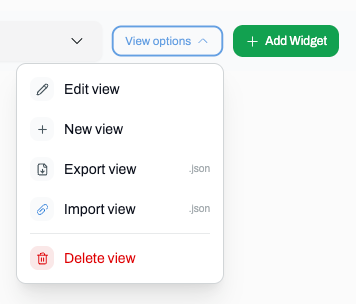
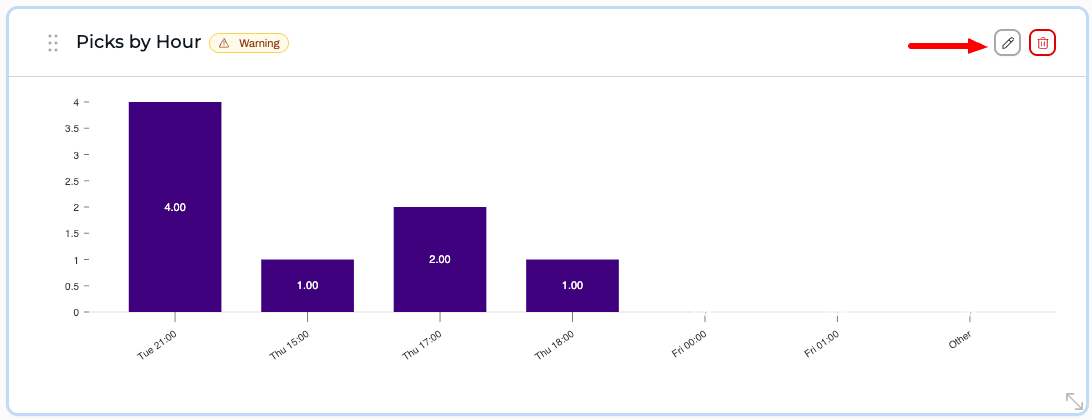
To customize an existing widget, select Edit View from the View Options dropdown and click the pencil on the widget to edit.
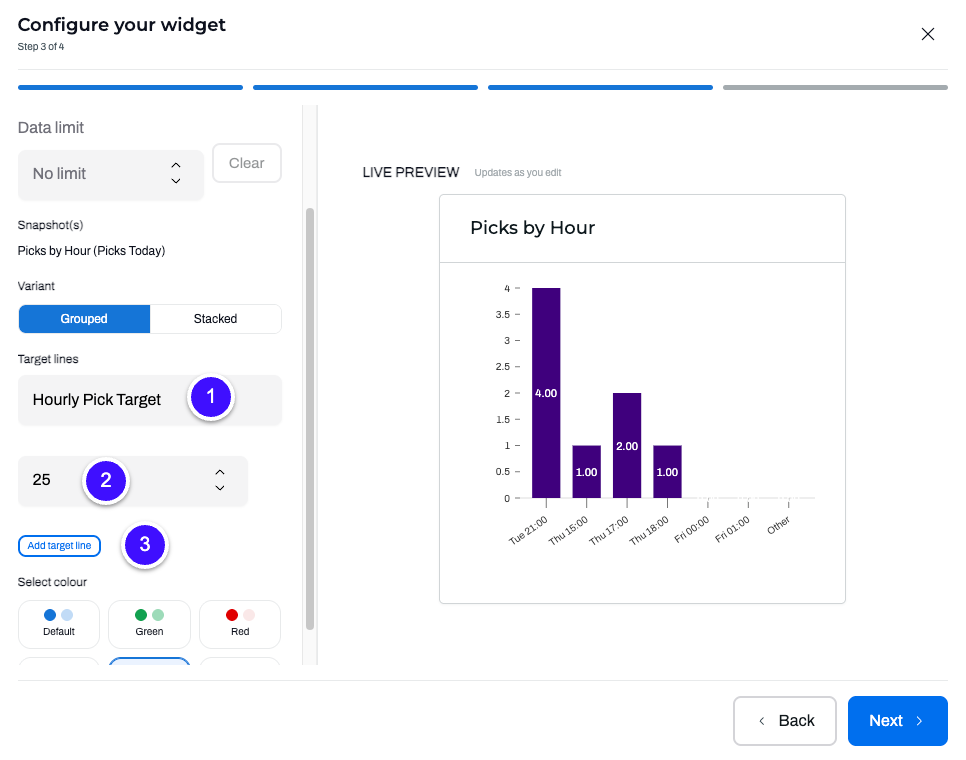
On Step 3 of configuring your widget:
- Add a label for the target line
- Set the target value
Click Add target line
Repeat steps 1 - 3 for multiple target lines.
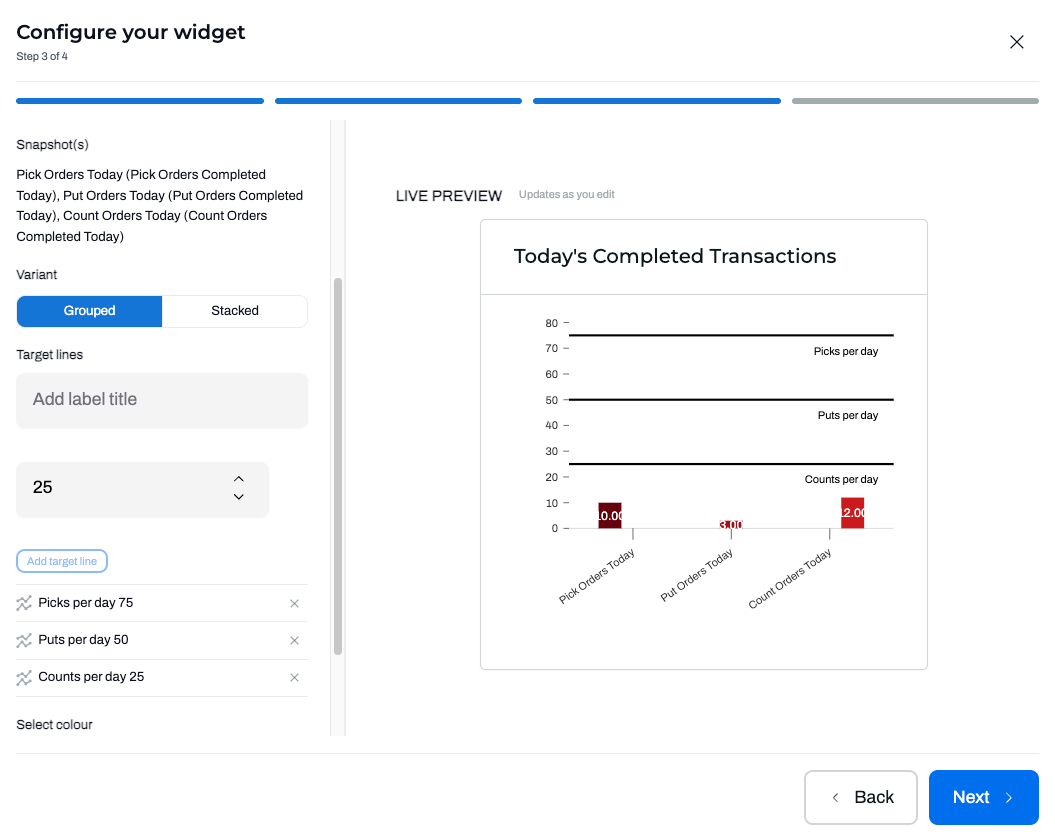
Click Next, then Save Widget.
Don't forget to click Finish Editing in the View menu.
