

Creating and Editing Dashboard Views
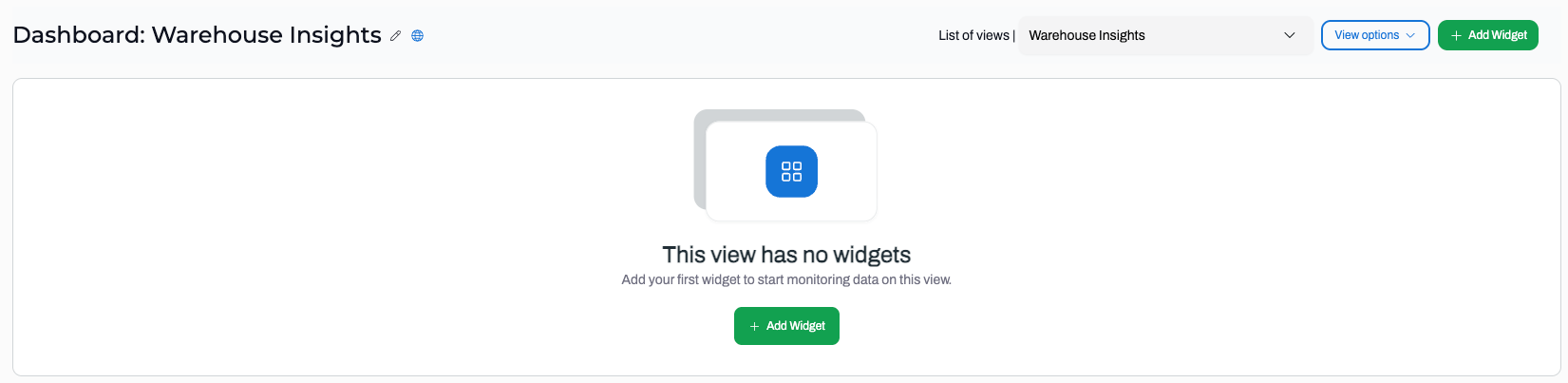
Your Dashboard is the default landing page each time you log in to ItemPath. If you haven't created any Dashboard Views yet, it will look like this:
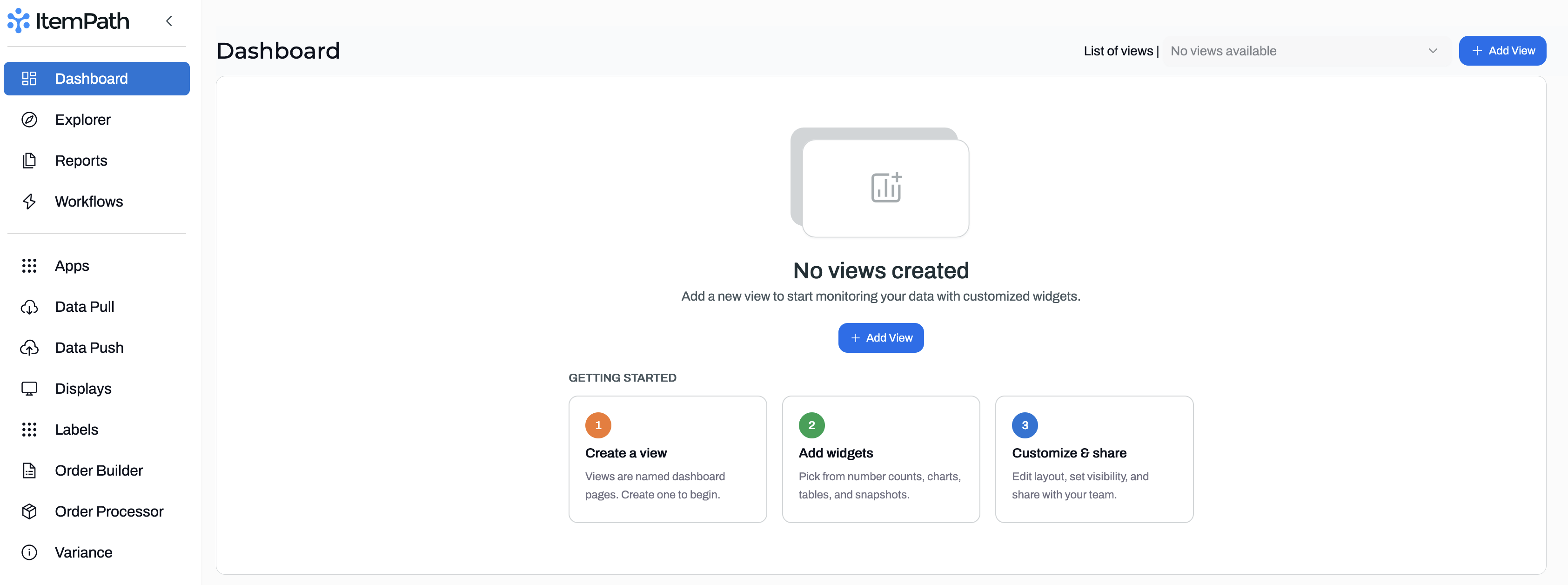
To create a new View click + Add View.
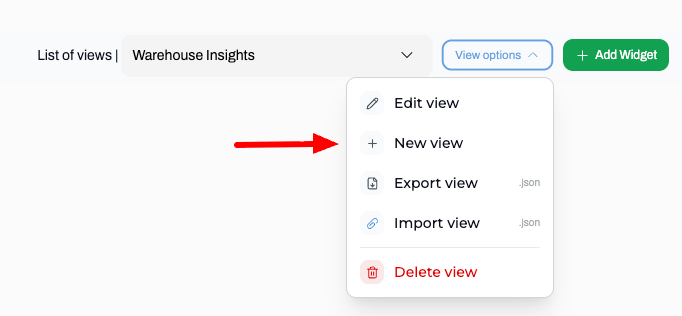
To edit an existing View, select + Edit View from the View Options dropdown. Or select + New View to create another!
If you do not have the ability to create or edit a Dashboard view or, your user role might not have that permission enabled.
Configure a new Dashboard View
- Give your view a name.
- Select the visibility (shared or private).
- If you want to import a Dashboard View Template, select the appropriate JSON file.
- If you want to clone an existing view, select one from the dropdown list.
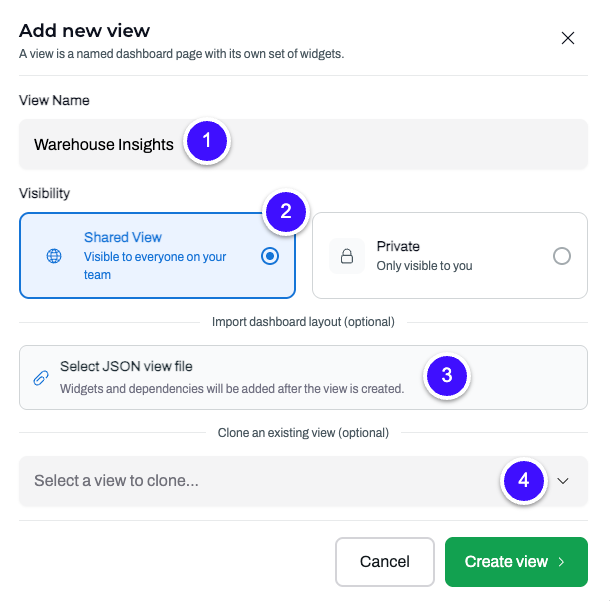
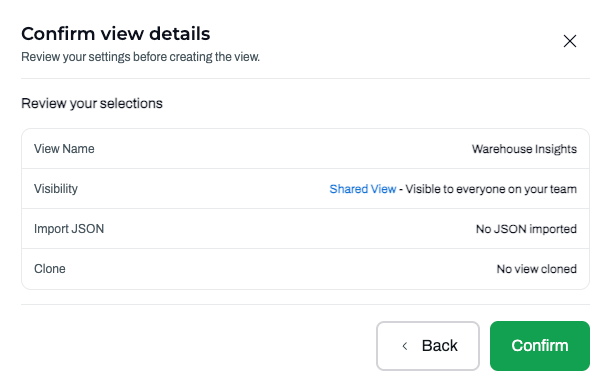
Click Create View, review the details, and Confirm.
Configure a Widget
Click + Add Widget to begin customizing your Dashboard View.
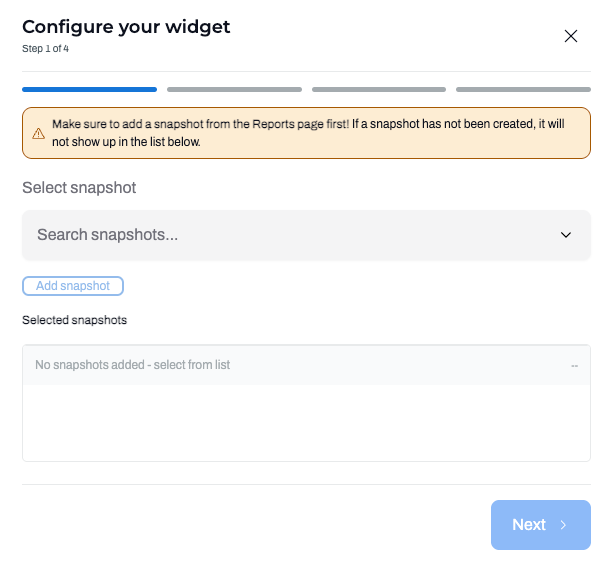
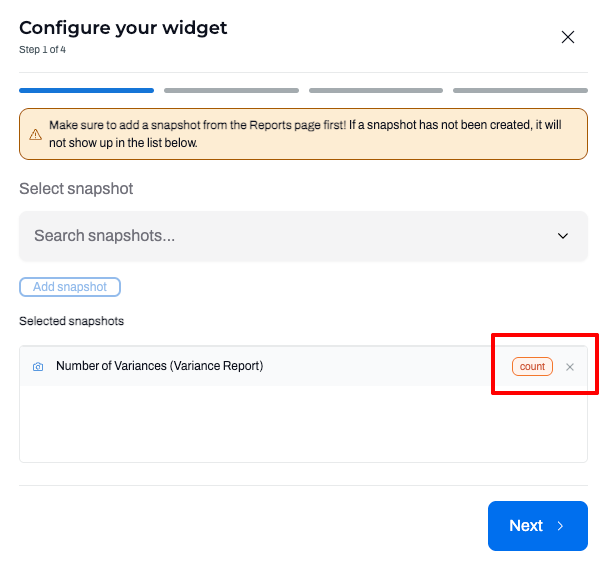
- Use the dropdown to search for a snapshot
Click + Add Snapshot.
Add multiple snapshots to a widget to compare data.
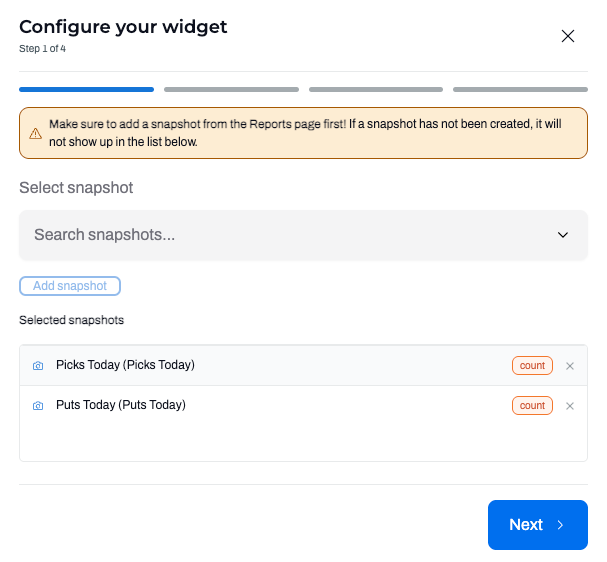
If you need to remove a snapshot, click the X on the selected snapshot.
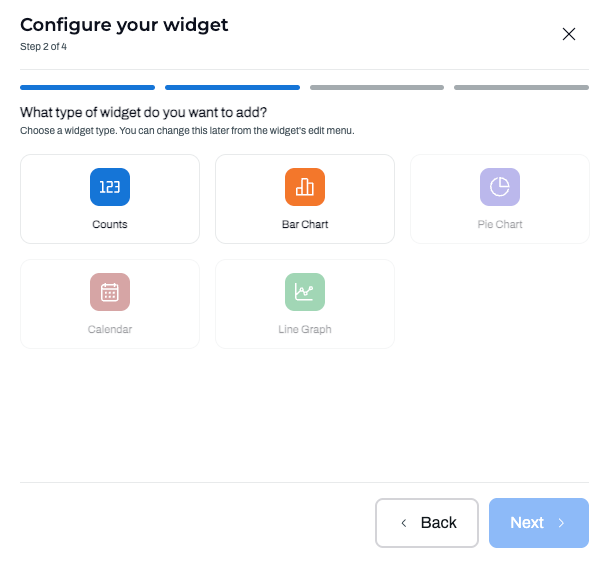
Click Next and select the type of widget you want to add. If the widget type you're looking for is greyed out, hover over it to see why this type is not available for the snapshot(s) you selected.
- Click Next and give your widget a name, then Save.
Edit a Dashboard View
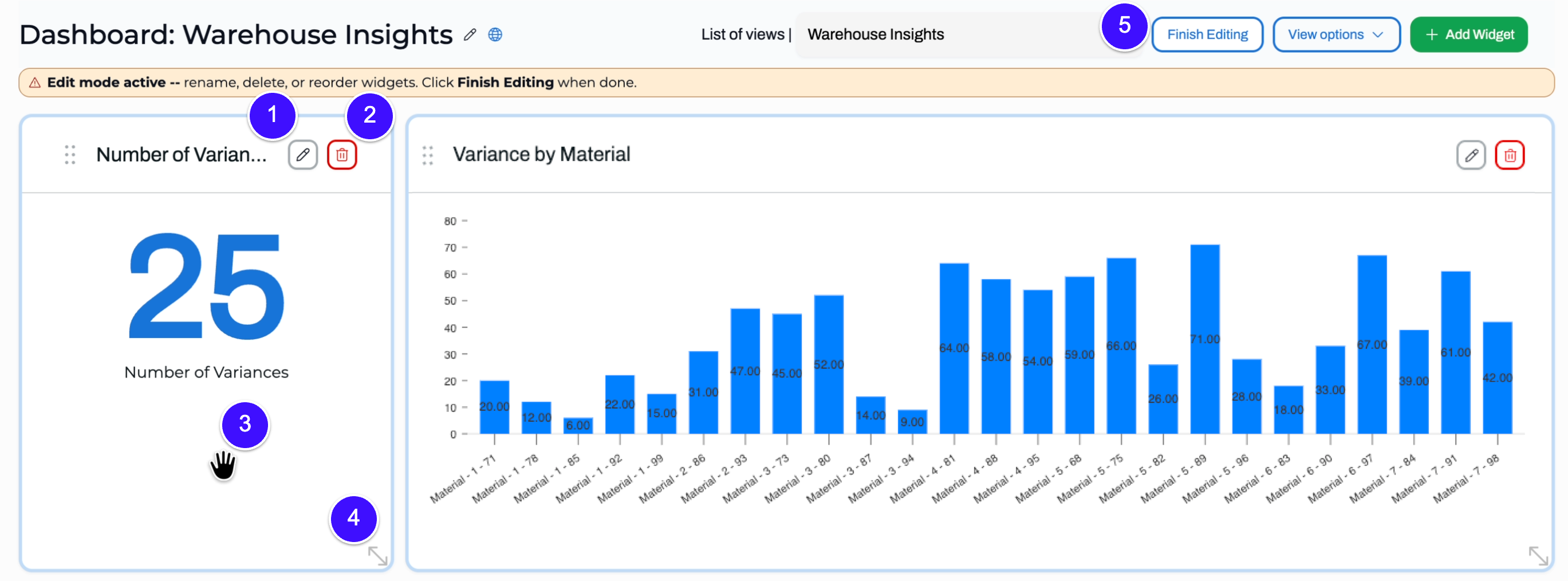
To edit, resize or rearrange widgets, select + Edit View from the View Options dropdown.
- Click the pencil on a widget to edit it.
- Click the trash symbol on a widget to delete it.
- Click and drag any widget to a new position.
- Click and drag the arrows in the bottom right corner of a widget to resize it.
- Click Finish Editing to save your changes.