


Integration Mappings *NEW*
The new Mappings tab is available in version 3.5.0 and later. If you are on an older version, please refer to:
- Integration Mappings for ItemPath 3 (version 3.0.0.0 - 3.4.10)
- Integration Mappings for ItemPath 2 (version 2.25.4.11 and older)
If you are interested in updating to the latest version of ItemPath, please reach out to support@itempath.com.
The Mappings tab allows you to customize how your Power Pick flows into your external system.
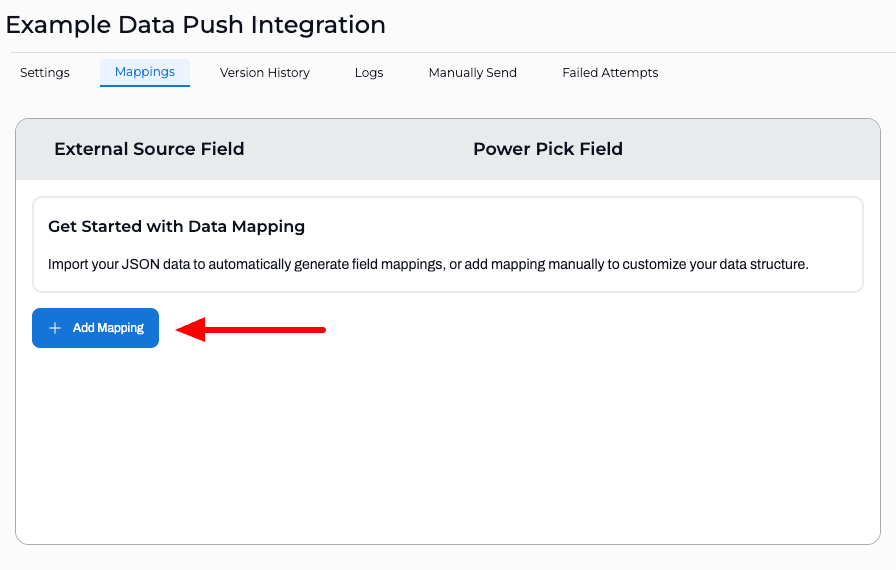
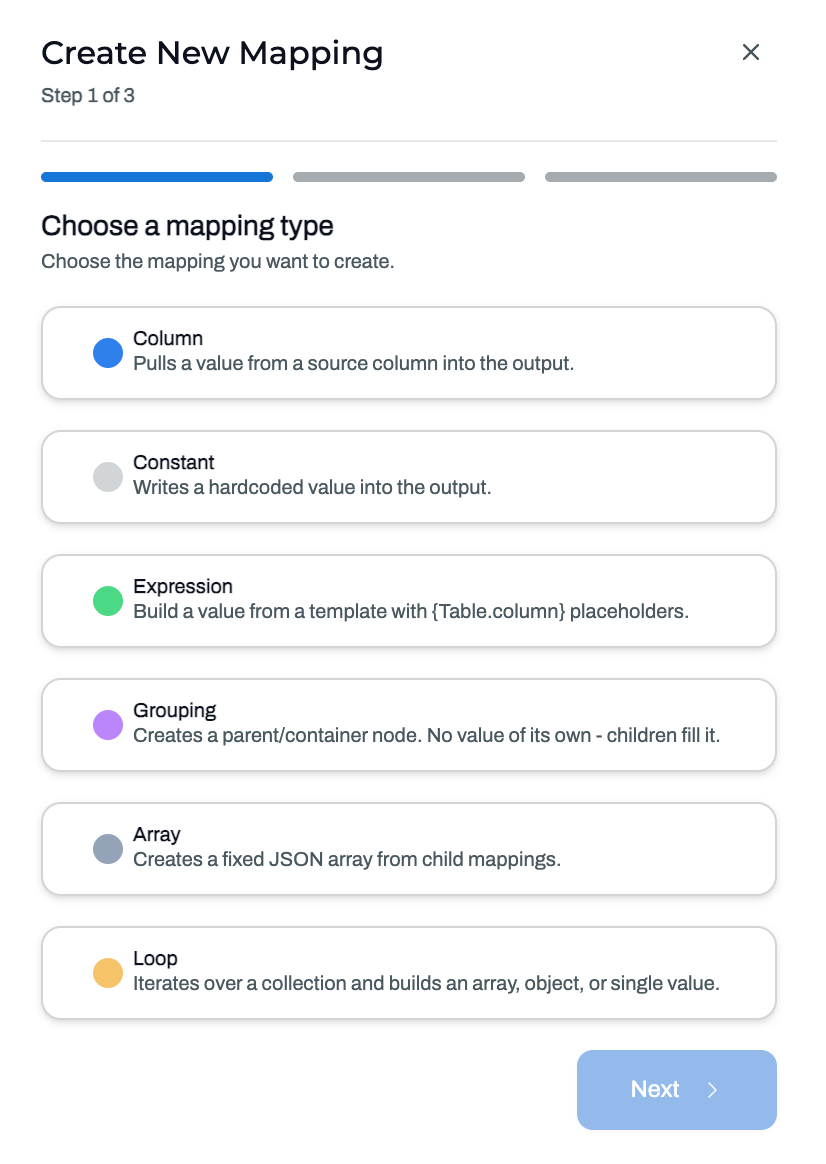
Click +Add Mapping and select a mapping type to get started.
- Column: Maps a specific data field from Power Pick directly to a field in your external system.
- Constant: Sends a fixed value (text, number, or true/false) with every call.
- Expression: Concatenates values using static text and placeholders from Power Pick fields.
- Grouping: Creates nested data structures by grouping multiple mappings under a single parent key.
- Array: Set up a static list structure in your JSON output. Use this purely to shape your payload when your external system expects an array format, but you aren't looping over transaction records.
- Loop: Process multiple records at once (like order lines or transactions) to output a list, a structured object, or a calculated total. Requires the Consolidate Transactions setting to be enabled (select either Consolidate Lines, or Consolidate Orders). See Integration Settings for more information on consolidating transactions.
One Order Line, Multiple Transactions
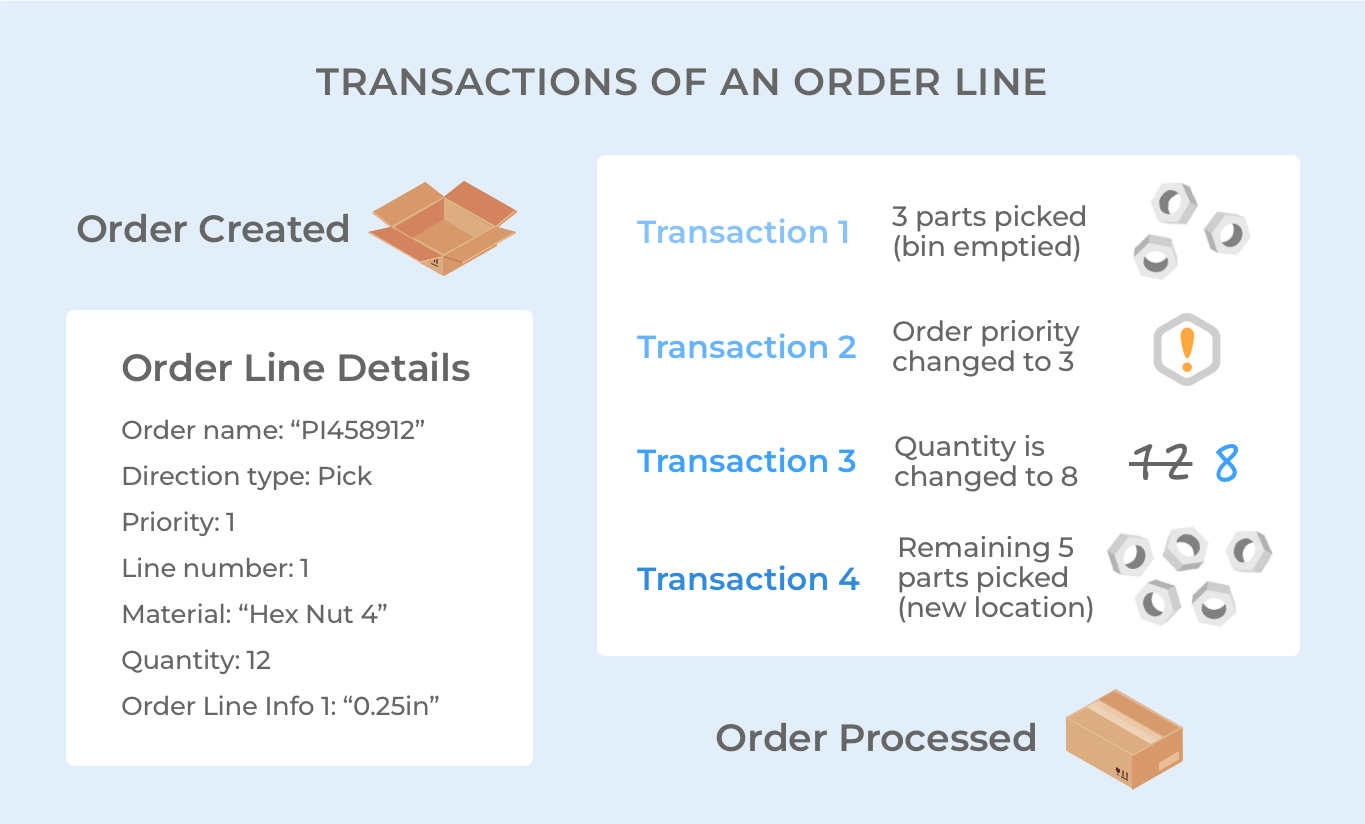
An important distinction about confirmations: one order line can have more than one transaction, for many reasons (e.g. picking or putting to multiple bins or handling units). These reasons might be associated with a motive, like a shortage or deletion.
With Data Push, transactions can be consolidated so only one confirmation is sent per order line, combining data from multiple records.
If the setting to Consolidate Lines is active, all transactions for an order line will be combined into one payload. When sending data for consolidated history records, with multiple transactions having unique data for a given key, the mapped value has a different structure.
If you're new to Power Pick, here are some examples of what constitutes a transaction and some of the kinds of information they include.
Editing and Publishing
It's important to note that any changes to the Mappings will automatically create a draft version of your integration if one does not already exist. If a draft version exists, the changes will be added to the current draft. These changes will not be published automatically.
Navigate to the Version History tab to see the full details of any draft. When you've finished making your changes, click Publish Change. For more information on Version History, click here.
Mapping Types
There are different options available to configure for each mapping type. There are some configurations that apply to multiple mapping types:
- External Source Field: The field/column name expected by your external system.
- Private: Check this box to mask sensitive values in system log files.
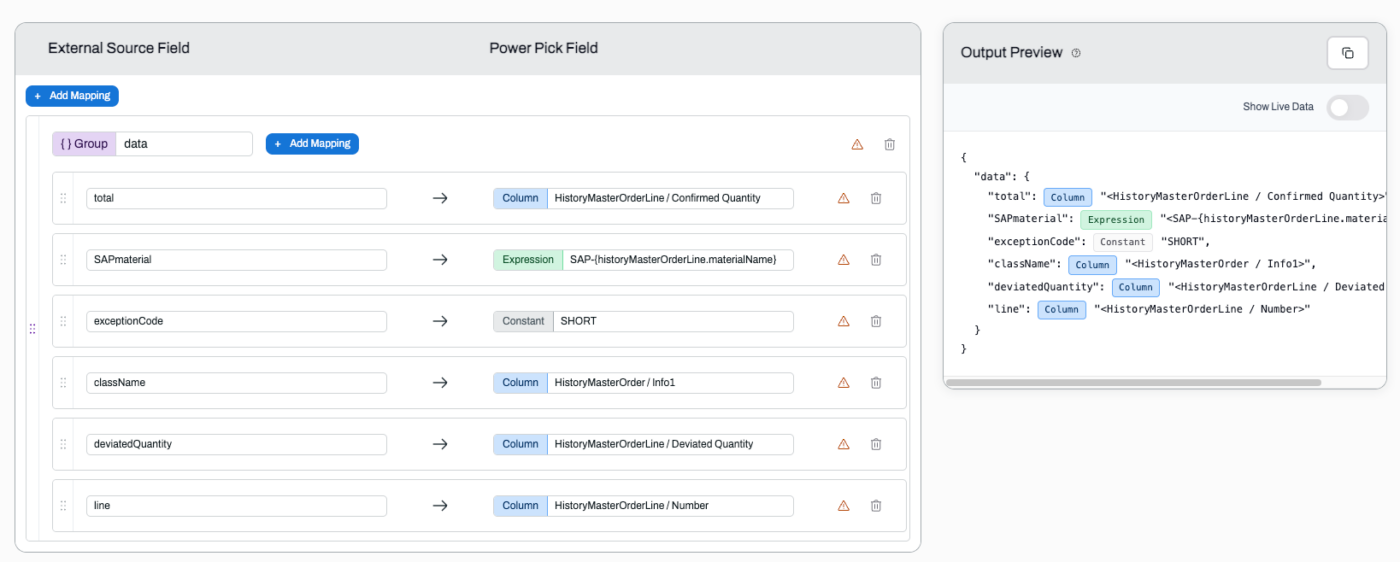
- Output Preview: Displays a placeholder example of the generated output and JSON structure.
Here's a breakdown of the specific fields and behaviours for each mapping type.
1. Column
Maps an individual field from Power Pick directly to a field in your external system.
You can map fields from Orders or Order Lines directly. If you need to map fields from History records, the column mapping must be placed inside a Loop.
- Power Pick Field: The corresponding Power Pick field you want to map.
2. Constant
Sends a fixed, static value in every data push. This is ideal for default system flags or labels.
- Constant Type: Select Text, Number, or Boolean.
- Constant Value:
- Text: Type the desired text string (or leave blank to send an empty string).
- Number: Enter a numeric value.
- Boolean: Select True or False.
4. Expression
If your external system is expecting a specific format for a value, you can concatenate static text with variables from Power Pick. For example, if you'd like to pass the order number with the prefix such as "WO-12345".
- Expression Template: Enter the concatenated value with a placeholder for the variable. E.g., WO-{HistoryMasterOrder.name}
3. Grouping
Creates a nested section in your JSON output. You can place any mapping type (Columns, Constants, Arrays, Loops, or other Groupings) inside a group to structure your payload.
After creating a grouping, you can add child mappings directly inside the group block.
4. Array
Defines a static list container in your JSON output for structuring purposes only. Use this when your external system expects a bracketed list format [ ], but you are not iterating over historical records. You can add child mappings directly inside an array (Columns, Constants, Groupings, Loops, or other Arrays).
Note: If you need to generate a list dynamically from multiple transaction or order line records, use a Loop instead.
5. Loop
Iterates through a collection of related records (such as transactions or order lines) and processes them together. To create a Loop mapping, ensure the Consolidate Transactions setting is set to either Consolidate Lines, or Consolidate Orders.
You can place any other mapping type (Columns, Constants, Groups, or Arrays) inside a loop. You cannot place a loop within another loop. Note: If you are consolidating orders, you can only select columns from History Order or History Order Lines, depending on the selected Iteration Unit.
- Iteration Unit: Select which collection of records to loop over:
- All Transactions in Order
- Order Lines (available only with Consolidate Orders)
- Output Mode: Determines how the collected records are formatted in the output.
- Object Array: Outputs a list of JSON objects
- Primitive Array: Outputs a simple flat list of single values
- Keyed Object: Keys each record by its unique History ID.
- When Collapse Single Item is enabled, if only one record exists, it flattens from an object to a plain value.
- Aggregate: Summarizes all records into a single calculated value instead of a list.
- Aggregate Function: Count, Sum, Min, Max, or Avg.
- Aggregate Source Column: Select the column used for the calculation.
Here some example of the various Output Modes:
Object Array
[
{"item": "A100", "qty": 2},
{"item": "B200", "qty": 1}
]
Primitive Array
[
"A100", "B200"
]
Keyed Object with 2 transactions
{
"id": {"historyId1": "orderlineId", "historyid2": "orderlineId"}
}
Collapsed Single Item enabled with 1 transaction:
{
"id": "orderlineId"
}
Collapsed single item disabled with 1 transaction:
{
"id": {"historyId1": "orderlineId"}
}
Output Preview
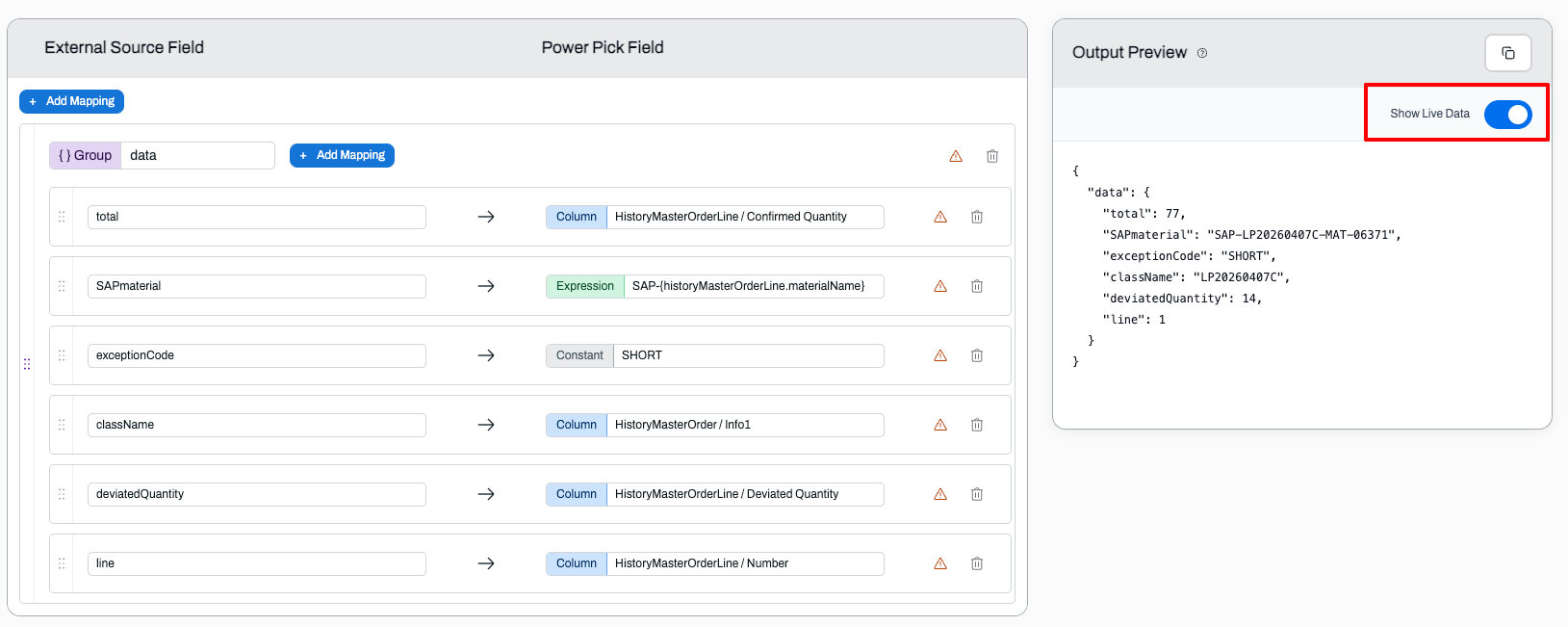
To the right of your mappings, you'll find the OutPut Preview window. This gives you a real-time look at what your JSON payload will look like before publishing your changes.
- Placeholder View (Default): The preview displays sample placeholder values so you can verify the structure of your JSON payload.
- Show Live Data: Toggle this switch ON to replace the sample placeholders with actual data from a recent record in your system. This allows you to validate your mapping structure, confirm formatting and verify that fields are populating as expected.
There's actually no way to order object keys—JSON standard doesn't support it. If you need to receive your object keys a certain way, consider how you name your mappings for your integration logic (e.g. prepending the mapped names with letters or numbers).
