

Creating Snapshots
Once you have a report, you can add a Snapshot to
- Gather the data by specified time slices
- Consolidate the data by groupings
- Present the data visually in a graph or totals
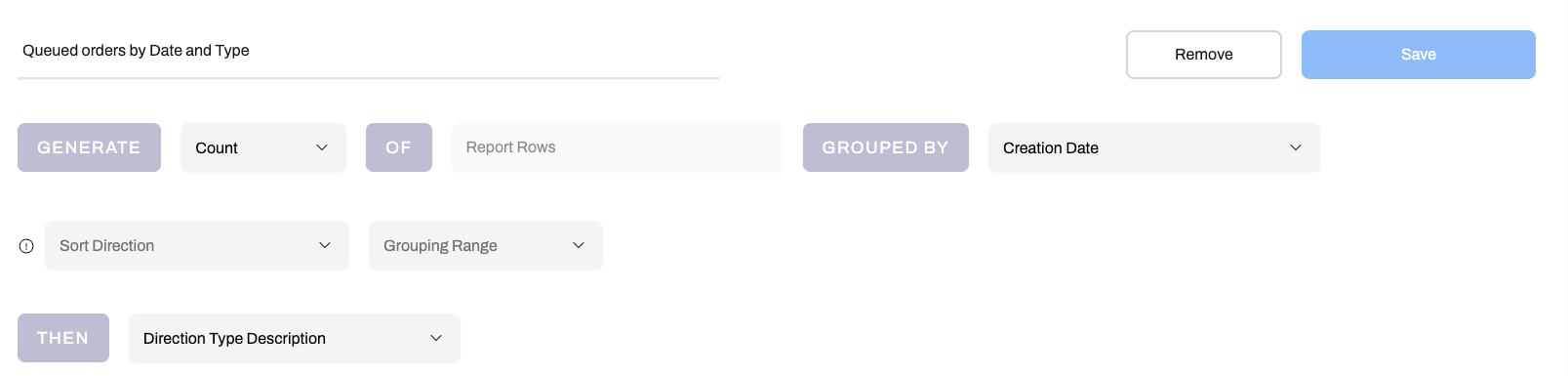
In your Report, click the Snapshots tab, Give your Snapshot a name, and decide how you want to display your data:
- Count Rows: Measures the total number of transactions or records in a group.
- GenSum, Average, Maximum, or Minimum: Measures specific numeric field values.
- Choose the specific column you want to base your calculations on.
- Grouped By: Select the primary column used to group your data.
- Sort Direction (optional): Choose how to organize the results.
- Grouping Range (date fields only): If you choose to group by a date column, select your preferred time range (year over year, month over month, all the way down to minute by minute).
- Multi-Level Grouping (optional): Add a secondary grouping level.
Don't forget to Save your snapshot!
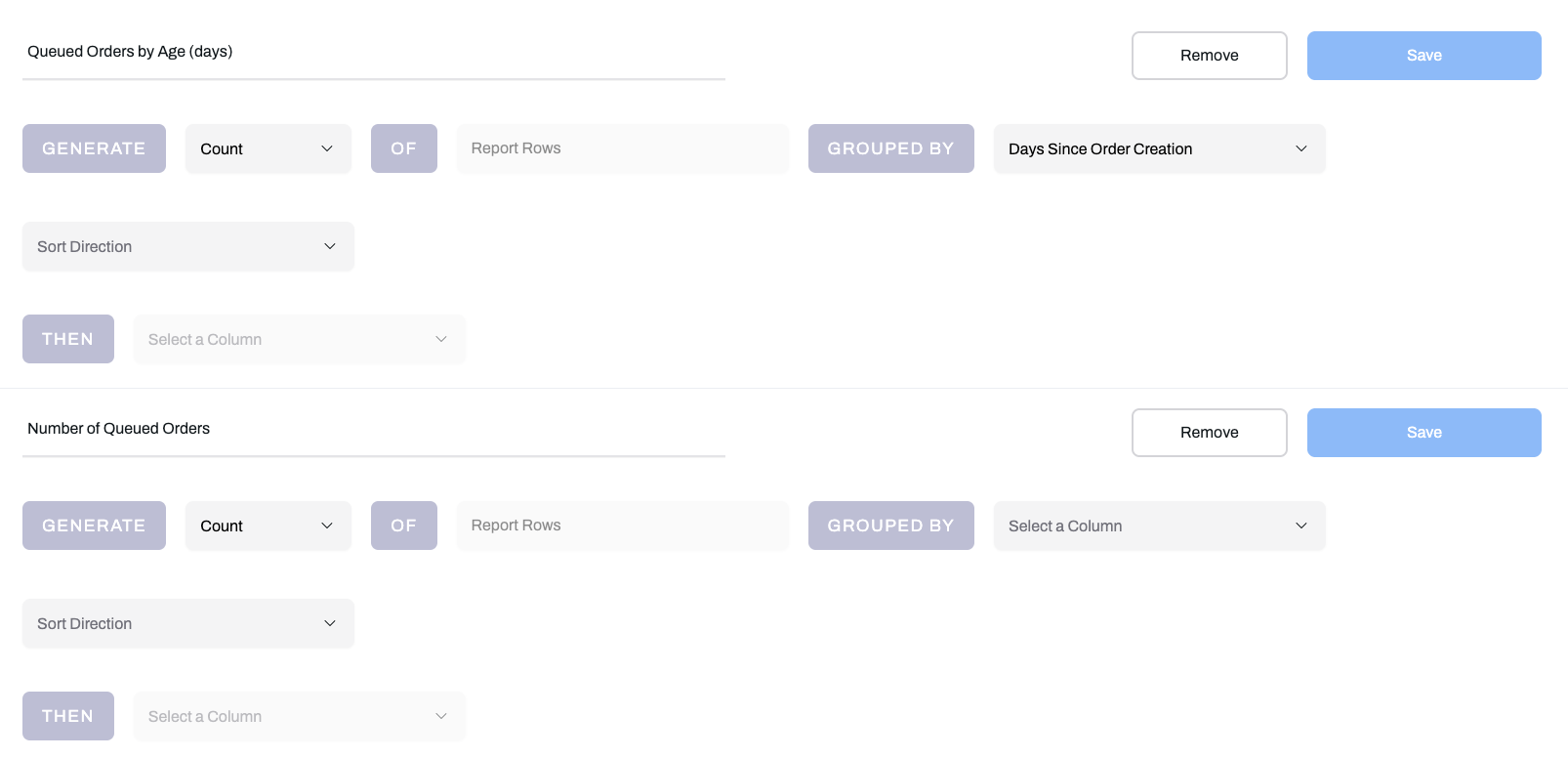
You can create multiple snapshots on the same report to create different visualizations of the same data.
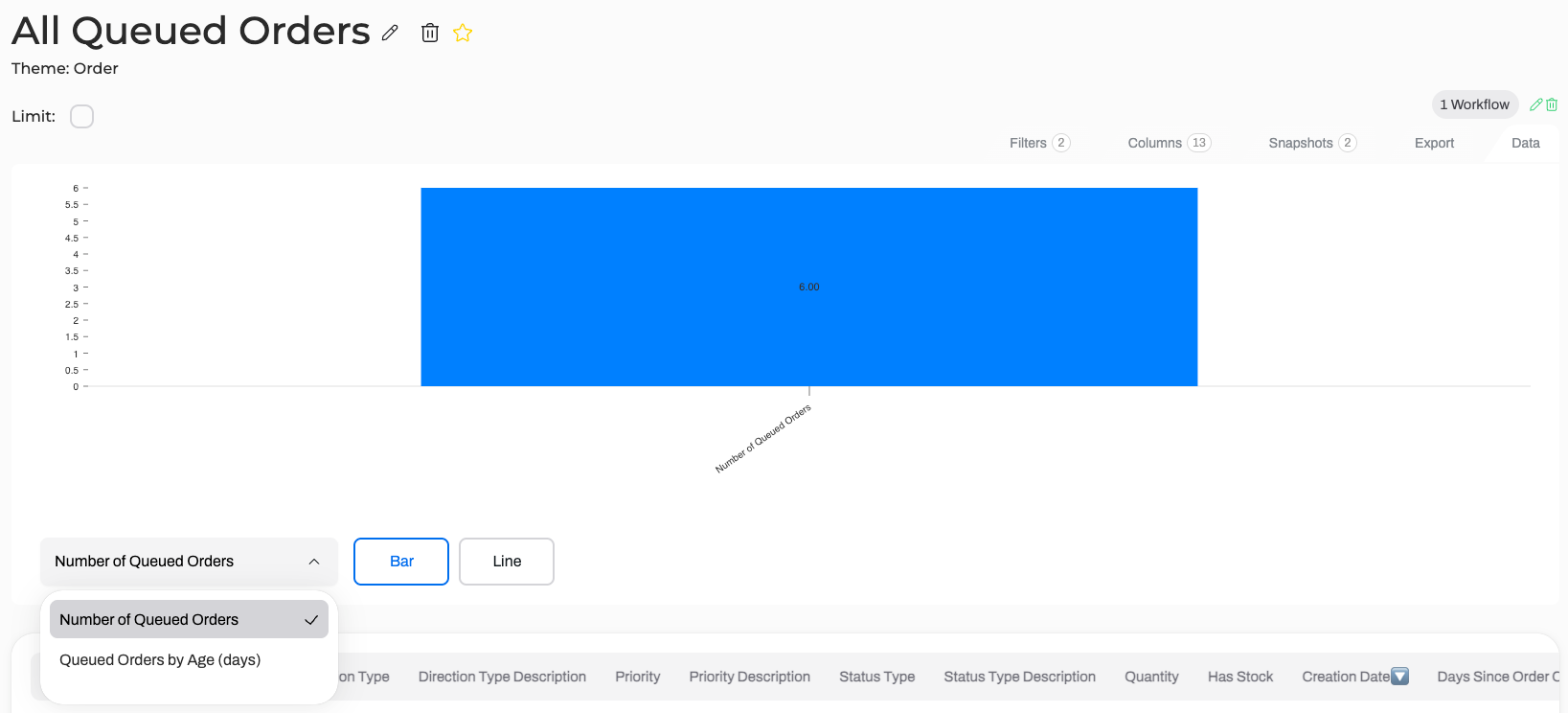
It will then be available to display the results in:
- The Data tab in Reports: Choose the Snapshot just above the Report results (see the dropdown at the lower-left of the image below)
- Dashboard widgets.
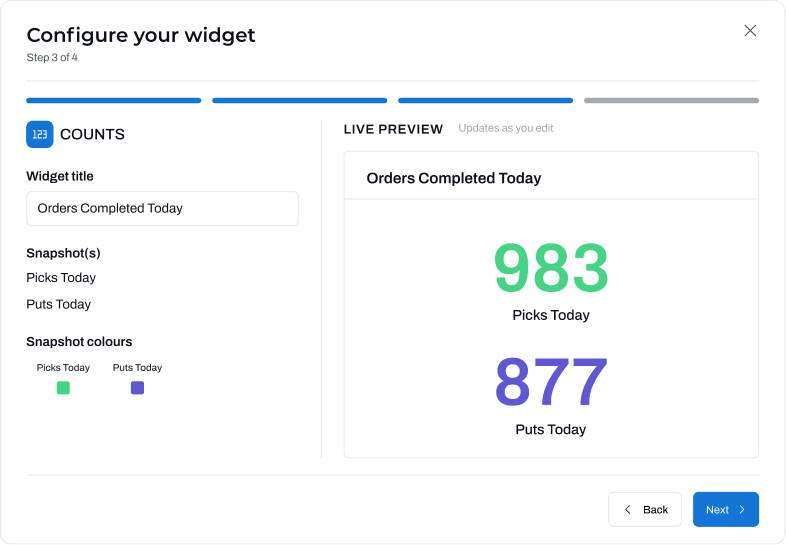
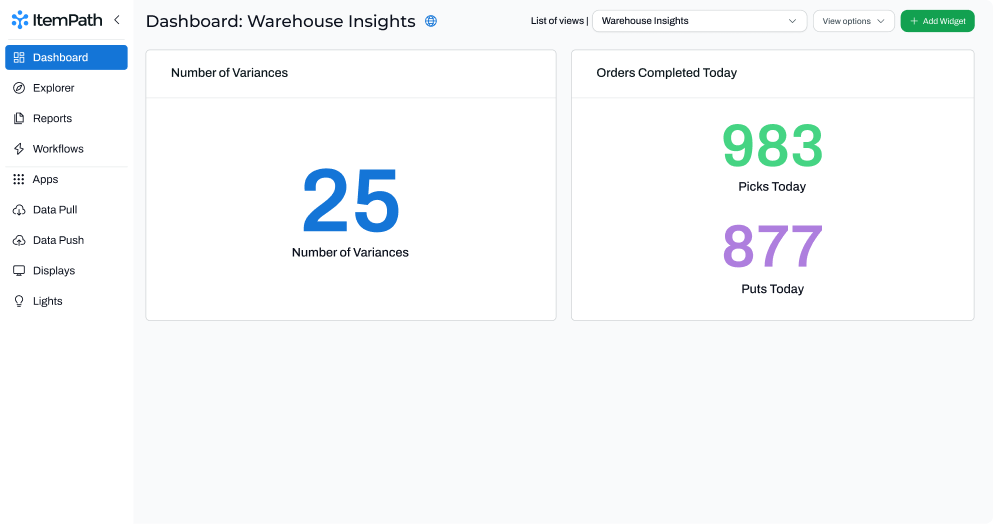
Adding this Snapshot to a Dashboard widget with the following settings will display the resulting image.
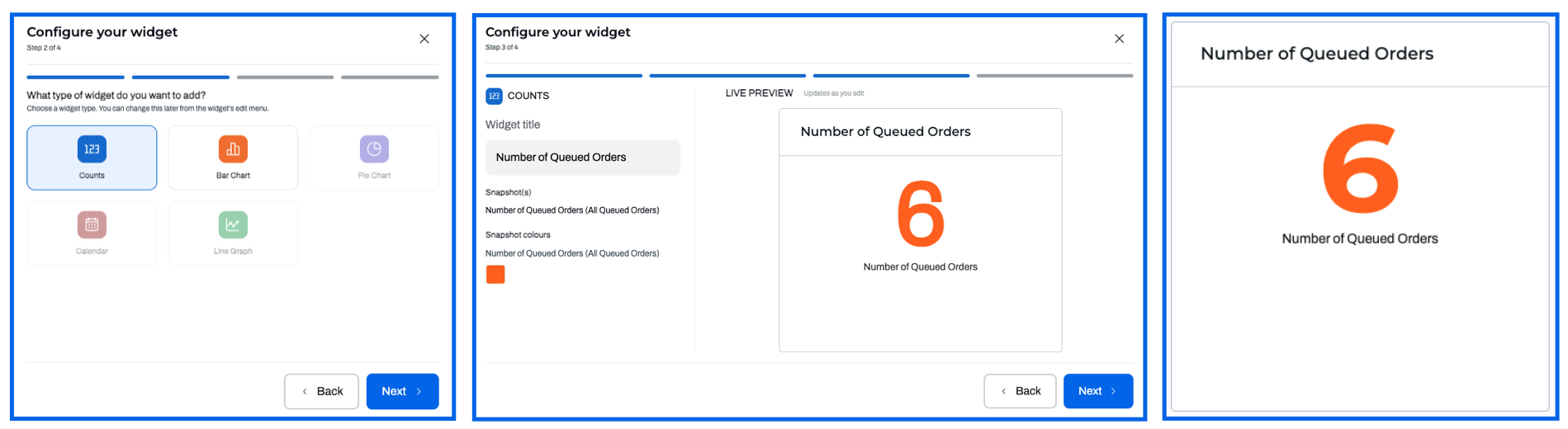
You can add multiple Snapshots from multiple Reports to a widget for comparison. In this example, you might also want to show the quantities of Picks and Puts completed today.
For snapshots with a secondary grouping, the widget chart will show quantities grouped by two values, depending on what's selected. A common choice is to group by Creation Date and a secondary value, though this will show a warning that grouping by Creation Date for many snapshots can begin to slow ItemPath down.
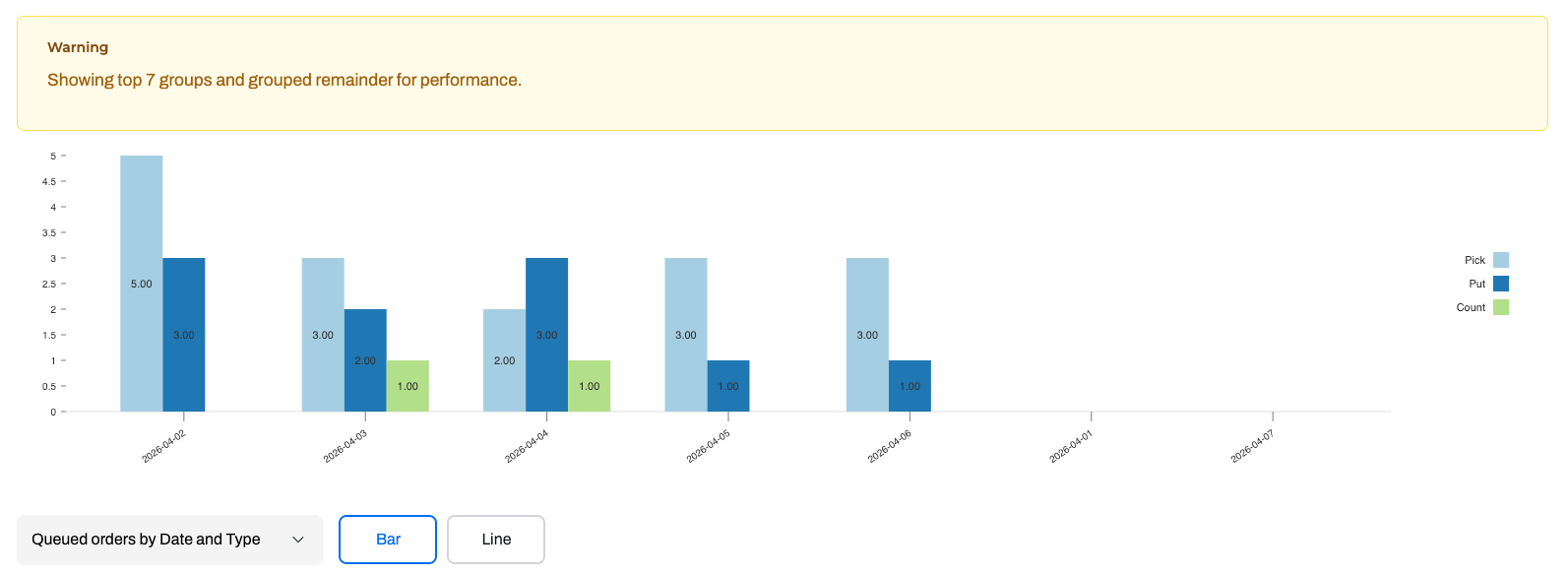
Here are the snapshot settings for this widget.