

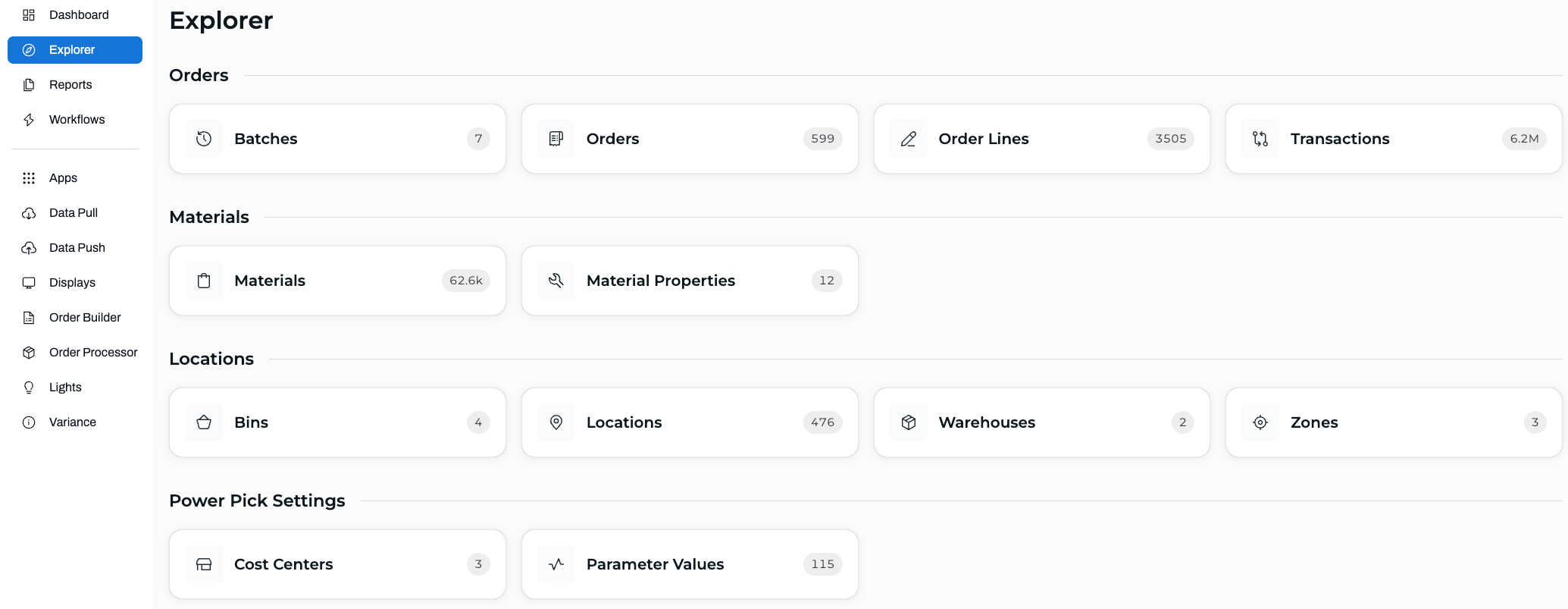
Explorer Overview
The Explorer gives you easy access to all your data. Take a look at your warehouses overview, or select one of the other tabs to make a quick search and find what you need.
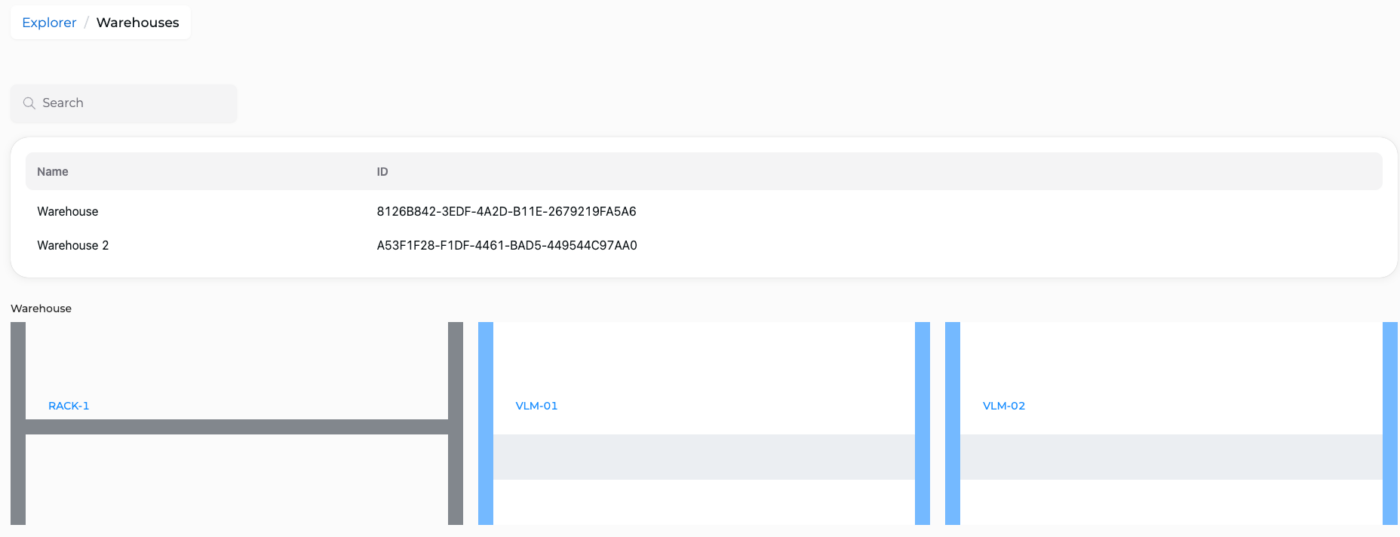
Warehouses
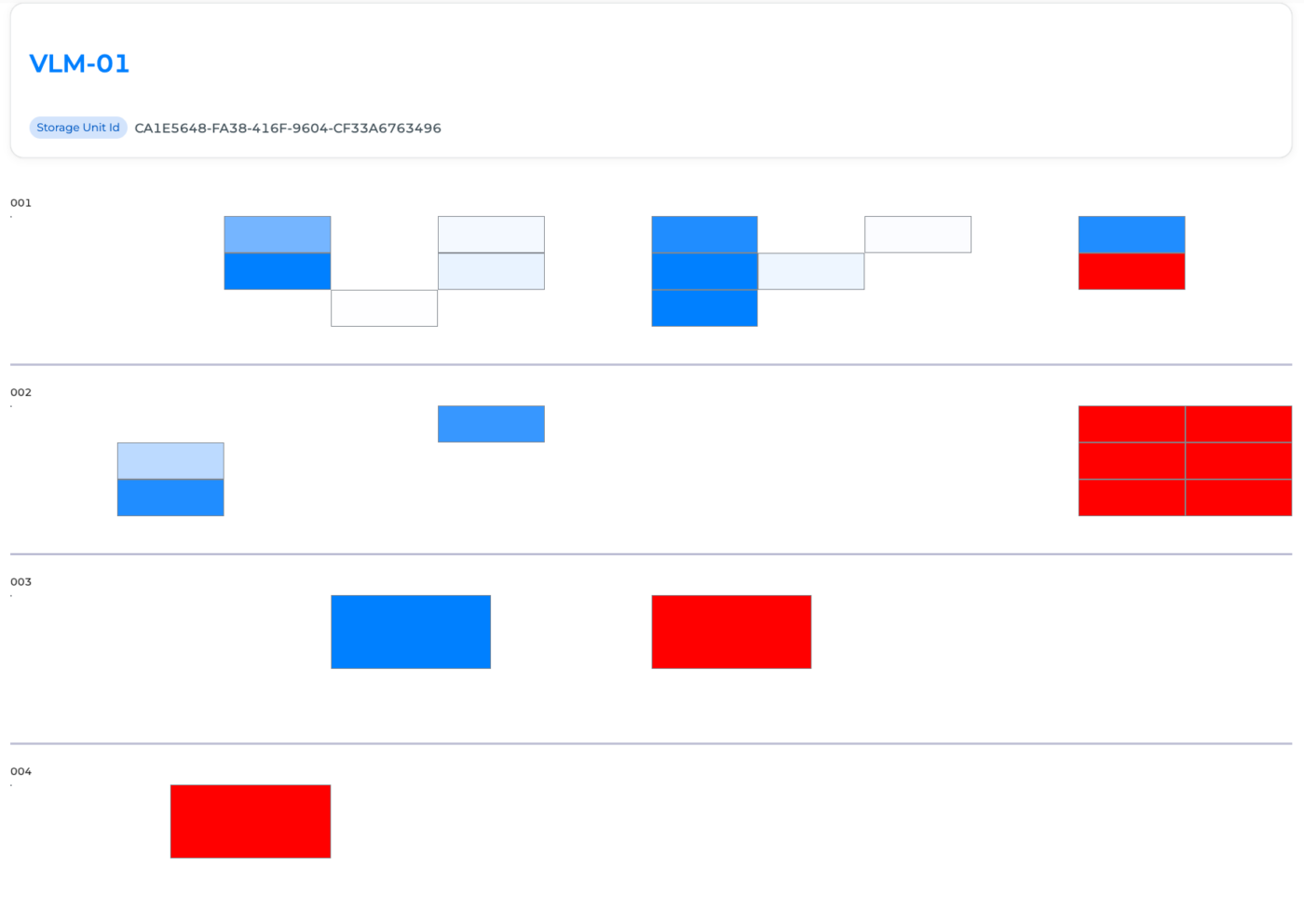
In the Warehouses view, click a shuttle or rack to view the status of its containers. Increasingly darker shades of blue indicate how full each section is. White means the container is empty, and red means it is full.
Other Tabs
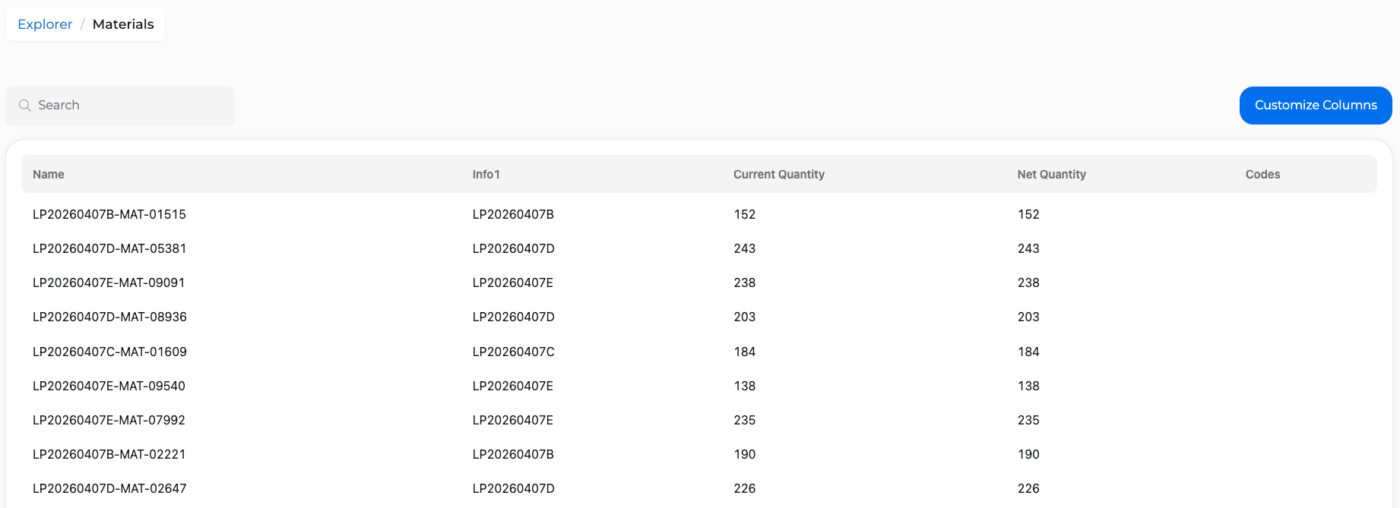
Find information from categories like Orders, Order Lines, Materials, Bins, and Storage Rules. Here's a closer look at the Materials tab, for example.
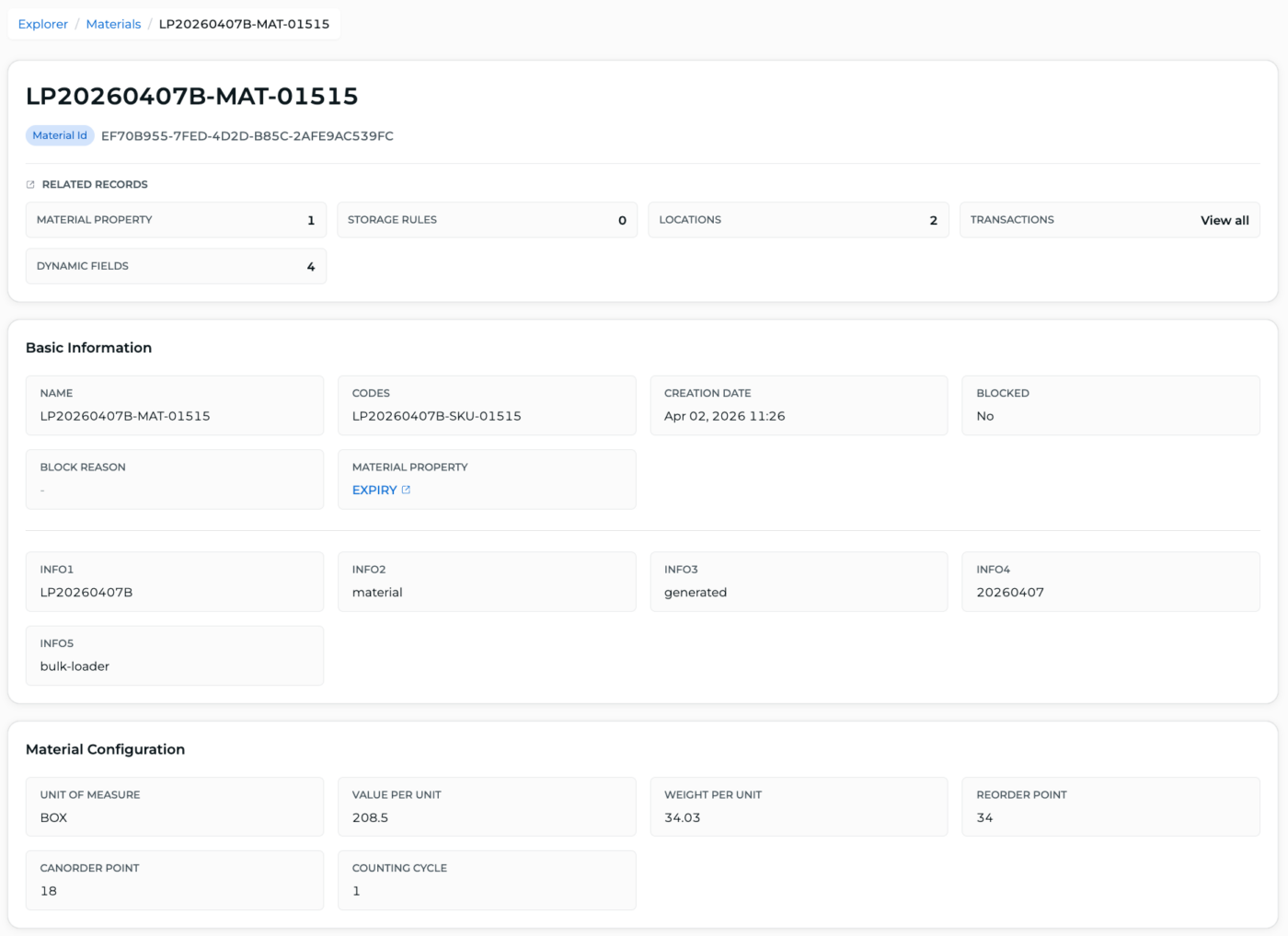
Check out these details about example material "LP20260407B-MAT-01515." This detailed view provides information such as the date the material was created, the current quantity, as well as the additional customizable Information Fields.
Under Related Records, you'll find clickable tiles, such as:
- Material Property: View the material property details from Power Pick.
- Storage Rules: Review any related storage rules for this material.
- Locations: Explore where the material can be found.
- Transactions: View a list of all transactions involving this material.
- Dynamic Fields: View any custom columns created in Power Pick for Orders, Order Lines and Materials.
Each tab shows different relevant information at a glance, and each one offers a search bar so you can easily find the lines you're looking for.
Transactions
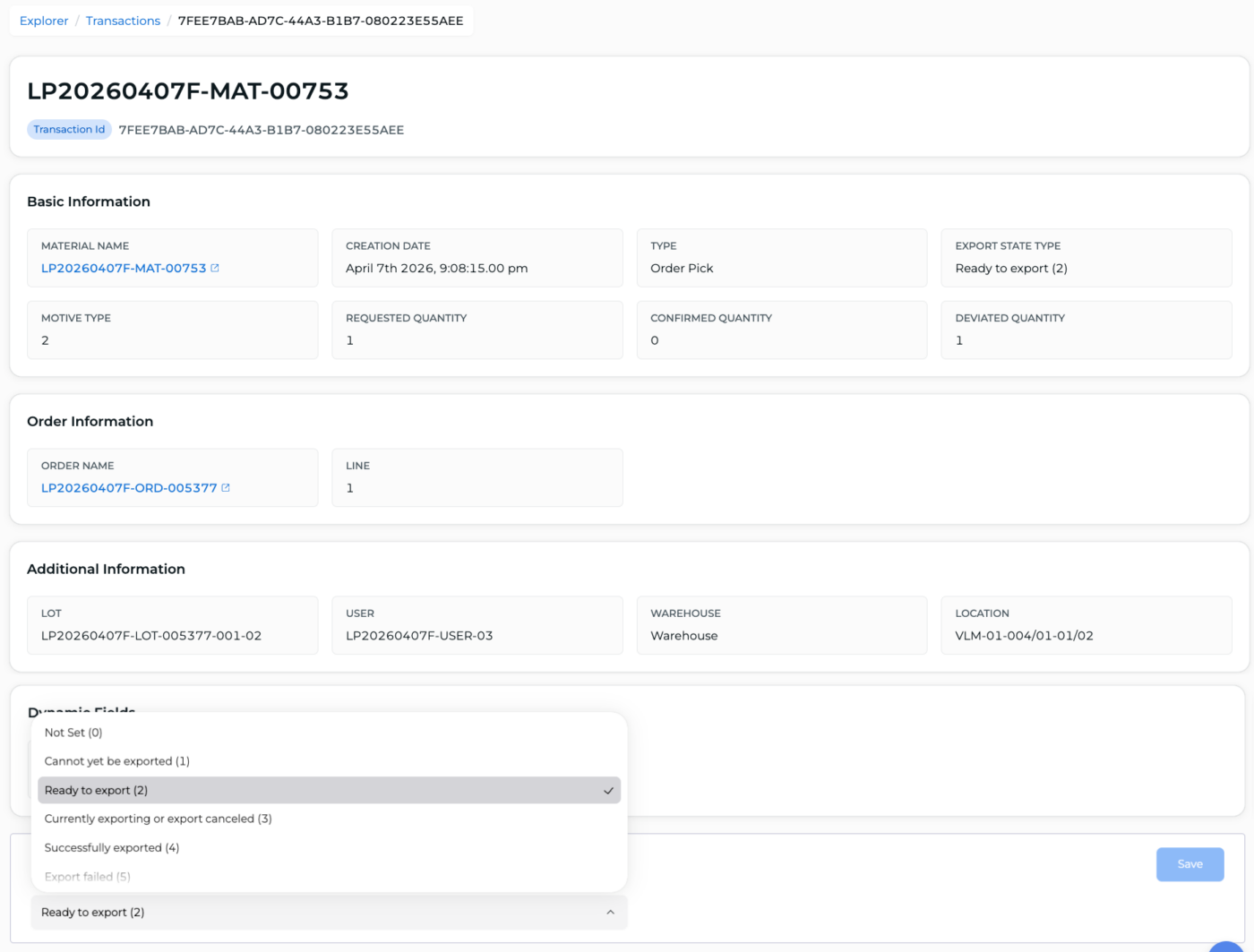
Transactions are also available to be viewed and edited in the Explorer! Like in other tabs, columns can be sorted, filtered, and searched. You can click on a transaction to display its details.
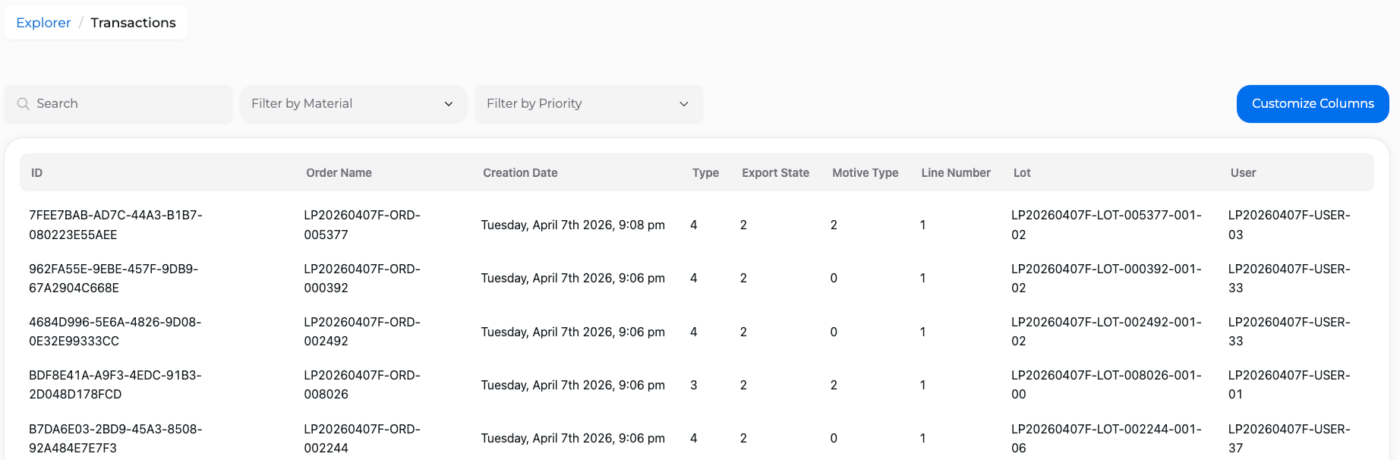
In the transaction view, the Export State type can be updated from this dropdown.
This is recommended for testing only or in the case of an error, since ItemPath's Data Push tool checks for Export State type "2" to find transactions that are ready to export.