

Authentication with Azure MSAL SSO
In order to use Single-Sign-On to log in to the ItemPath API, some configuration is required. Below are the steps to set up Azure MSAL SSO for ItemPath.
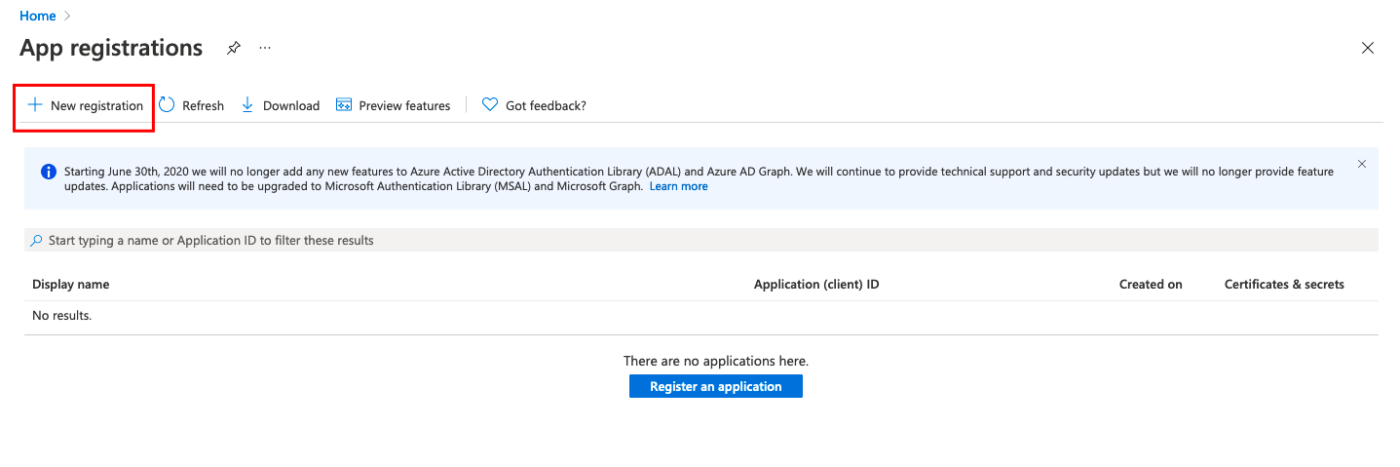
1. In your Microsoft Azure Directory, register a new application.
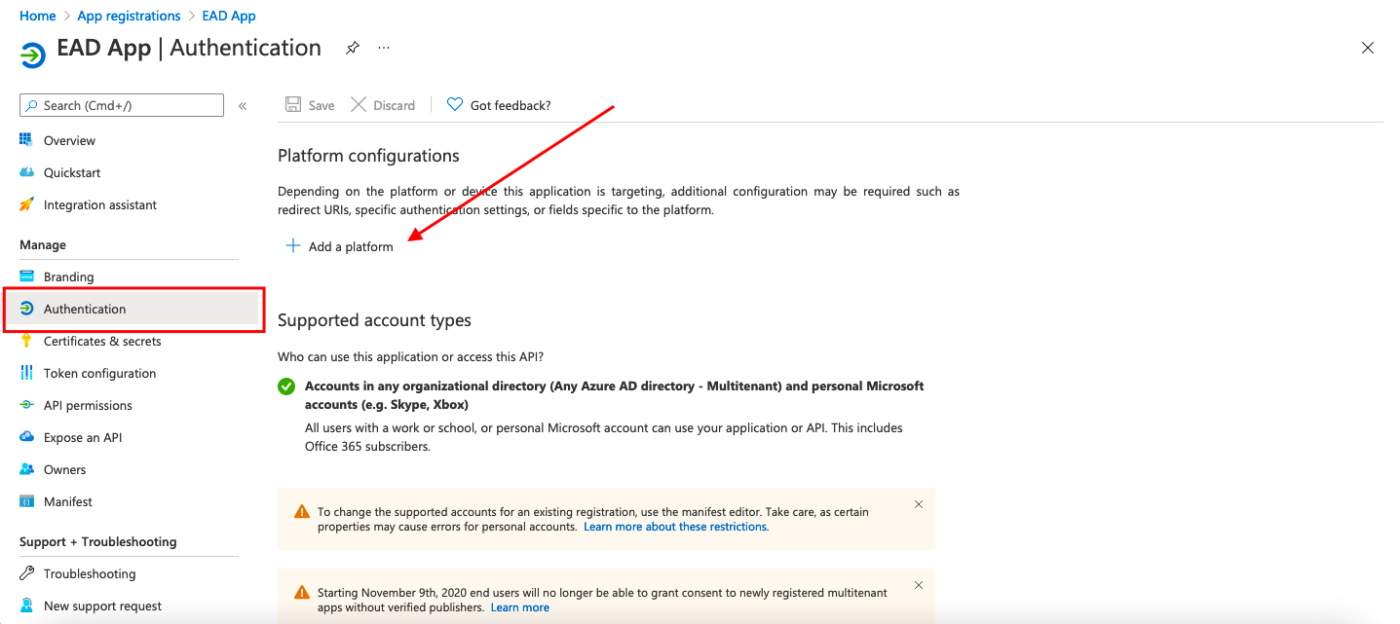
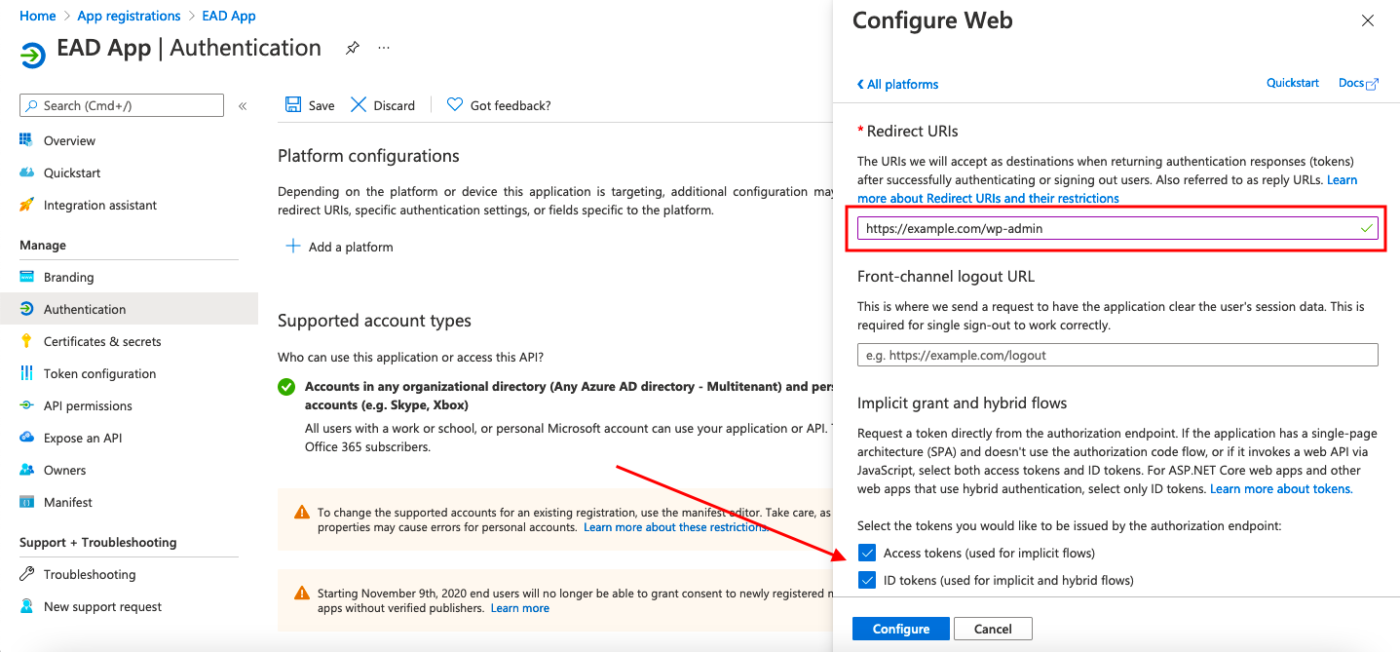
2. Under Manage, select Authentication > Add a platform.
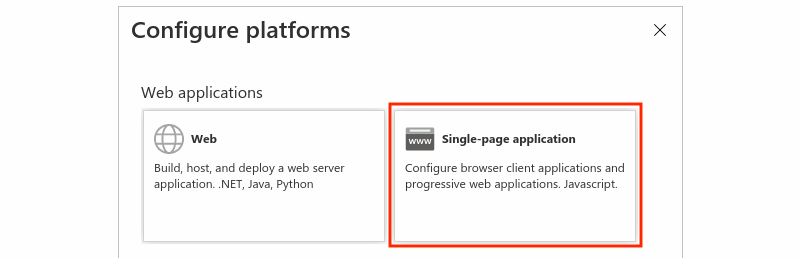
3. Under Web applications, select the Single-page application tile.
4. Under Redirect URIs, enter a redirect URI. This value should be https://[your ItemPath subdomain or IP].com/login.
5. Check both "Access Tokens" and "ID Tokens" checkboxes under "Implicit grant and hybrid flows."
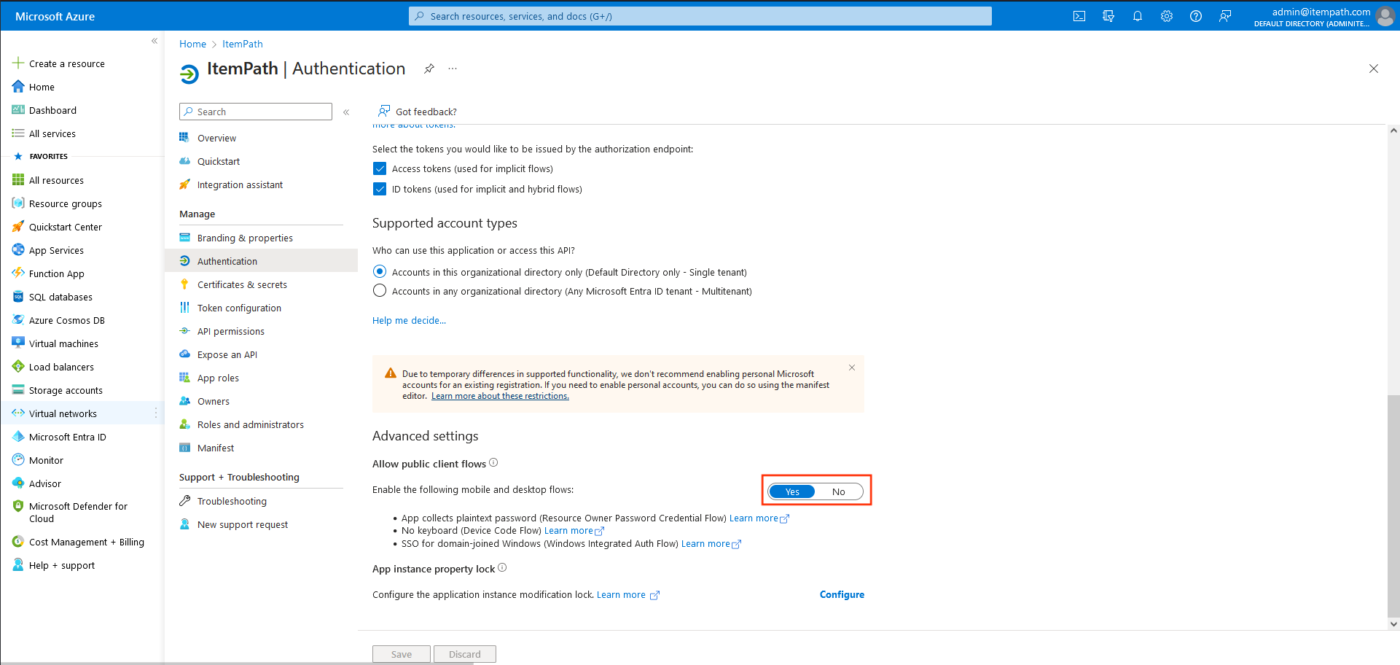
6. Toggle Allow public client flows to "Yes"
7. Select "Configure" to finish adding the redirect URI.
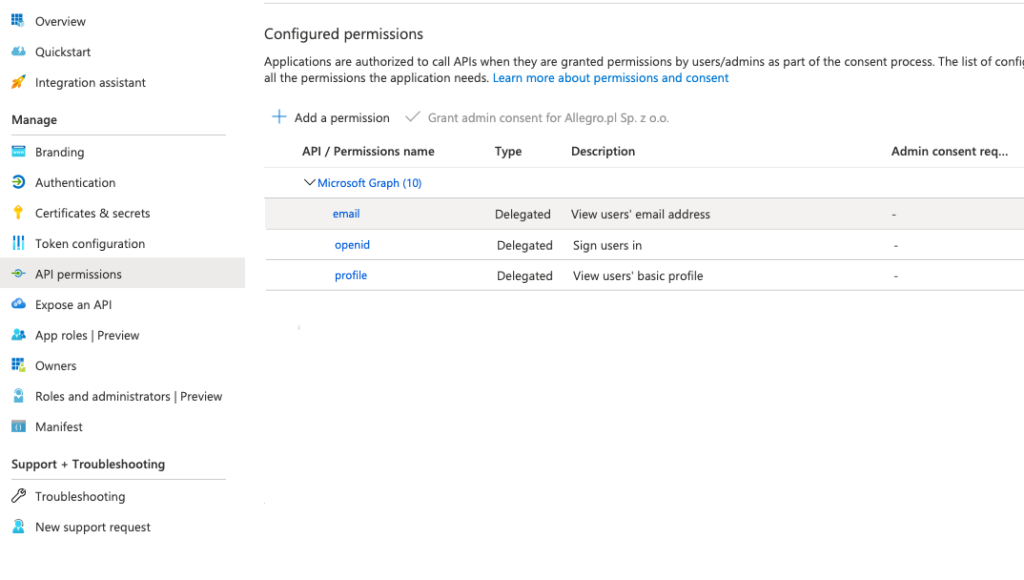
8. Under Manage, select API permissions.
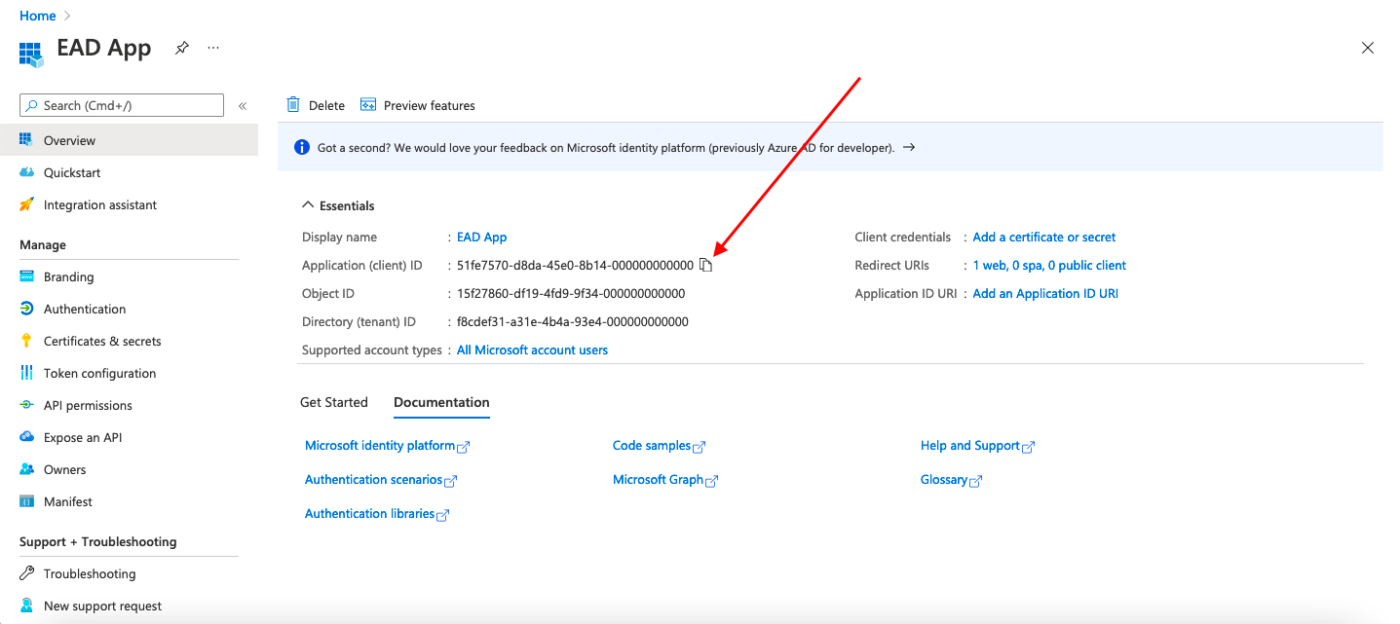
9. Add 3 Delegated Microsoft Graph Permissions: email, openid, profile.
10. In the Application Overview, save the Application (client) ID and Directory (tenant) ID as ItemPath support will require this in the installation process.