


Restart ItemPath (Version 2.25.4.11 and older)
If you're running ItemPath 2 (version 2.25.4.11 and older) you can try to re-establish the connection to Web Services by restarting ItemPath.
In the ItemPath footer, click on Status, then select Restart ItemPath.

After ItemPath restarts, navigate to Settings > Kardex and click Test Connection on your Web Services connection.
If you see a green checkmark next to Test Connection, the connection is successful!

If you see a warning symbol next to Test Connection, this is a quick way to note that the connection is not active.
Click on the Logs tab to view the results of your test.

Refresh the Web Services session (ItemPath 3)
If you're running ItemPath 3 (version 3.0.0.0 and later), you can try to refresh the Web Services session directly in your ItemPath settings.
In the ItemPath side navigation, click on Settings, then select the Kardex tab.
On the Web Services connection, select the Sessions tab and click Refresh.
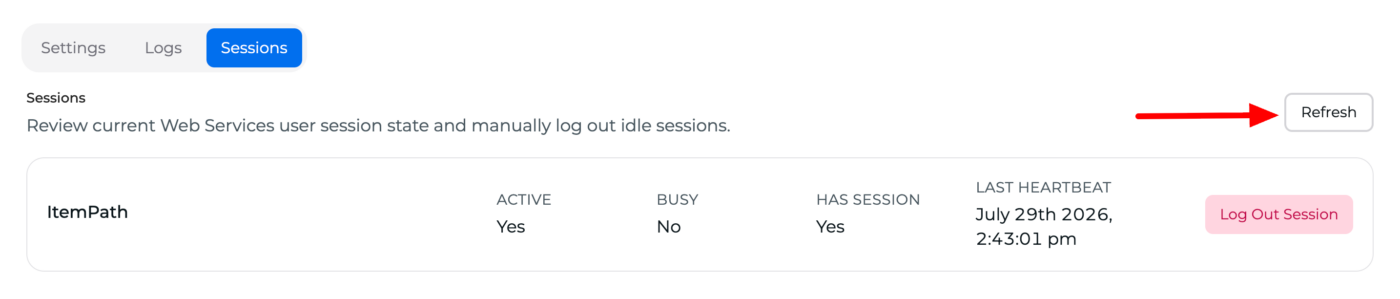
You'll know the session is refreshed when the date/time value for the Last Heartbeat updates to current.
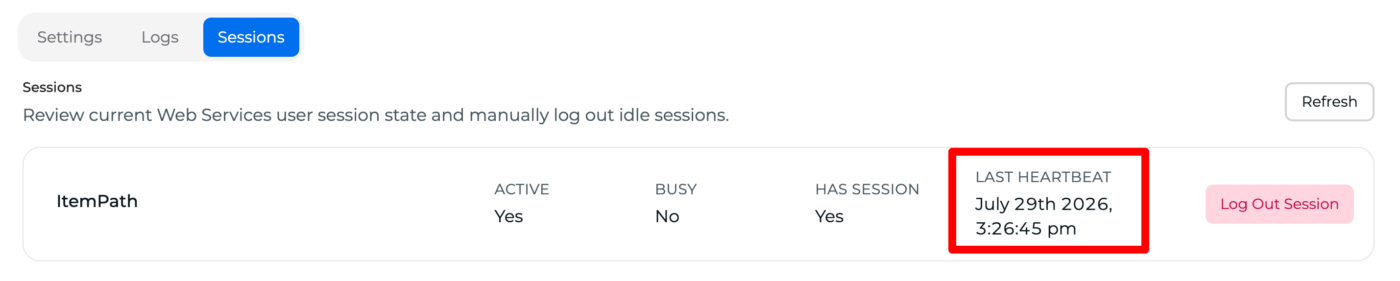
Click on the Settings tab for the Web Services connection again and click Test Connection. If you see a green checkmark next to "Power Pick Web Services Connection", the connection is successful!

If you see a warning symbol instead, this is a quick way to note that the connection is not active.
Click on the Logs tab to view the results of your test.

Further Troubleshooting
If you're still experiencing errors with the connection to Web Services, see Why is my Web Services connection failing?
Confirm you have a valid Power Pick license, and if applicable, a CEU - Web Services license, then restart Power Pick. See How do I restart Power Pick services?
