


Changing your password while logged in
If your company requires regular password changes for compliance and security, you can log in to ItemPath to update your password as needed.
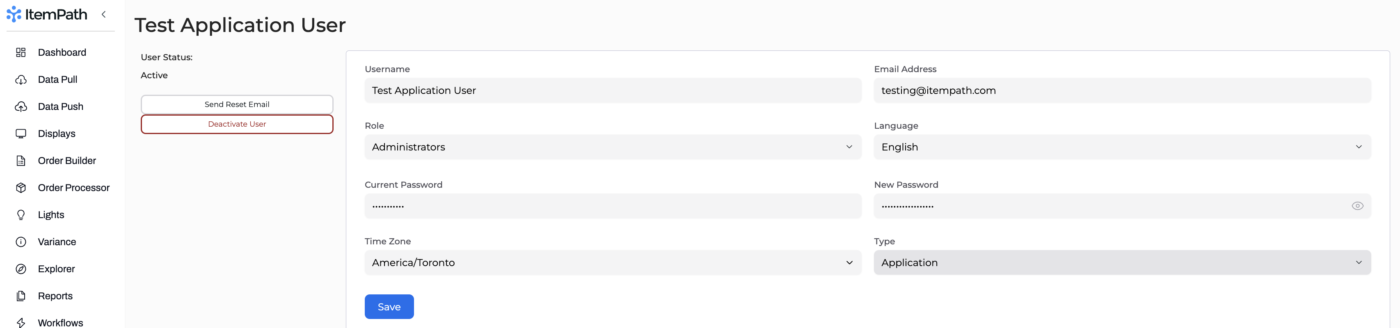
- Click on your profile icon or name in the bottom left corner of the screen.
- Locate the Current Password field.
- Type in your current password, enter your new password, and click Save.
If you have forgotten your password
If you’re having trouble logging in to your ItemPath account, click the "Forgot Password?" button on the login page.
Note: This will be on the login page for your company's ItemPath environment. E.g., CompanyName.itempath.com.
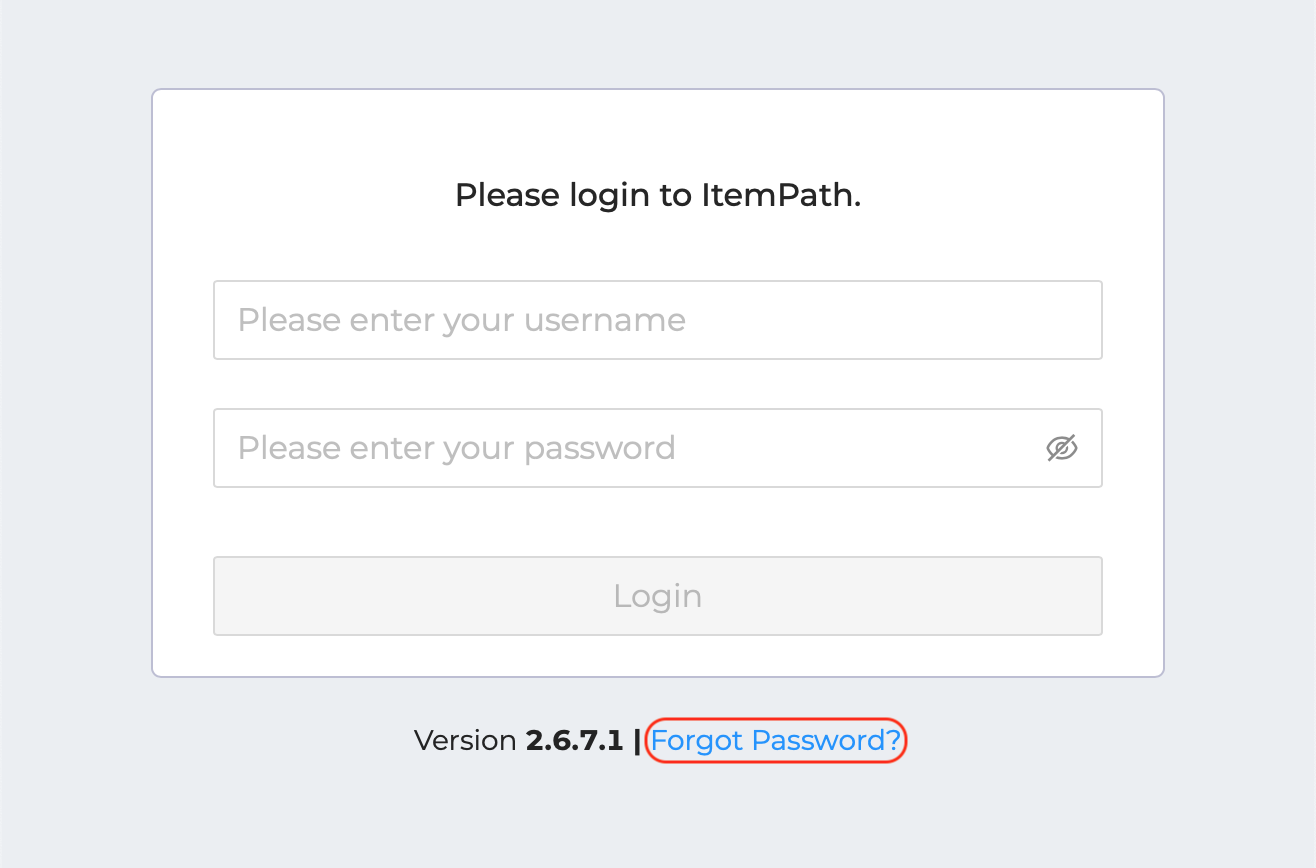
You’ll be prompted to enter the email address you used to register your account, then click Submit. ItemPath will send you an email to change your password.
Note: Since ItemPath does not currently support two-factor authentication, we recommend that you use a secure password keeper to generate a strong password for your account.
If you can't remember the email address associated with your account, you will need to contact an Administrator on your team.
Troubleshooting: Why is my password reset link not working?
If you receive the password reset email but the link is not clickable, a setting inside the app needs to be updated. Ask an Administrator on your team to check the ItemPath URL field on the General Settings page of your ItemPath environment to make sure the address is correct:
- Cloud customers: This will be the URL for your ItemPath environment.
- On-Premise Customers: This will be the local IP address or domain where ItemPath is installed.
You can still reset your password immediately without waiting for your administrator. Paste the link provided in the password reset email into your browser's address bar, following the domain where ItemPath is found. (E.g. YourCompany.itempath.com/reset-link-goes-here)
For On-Premise Customers Only
If the password reset link does not work at all, your company's security system or firewall may be blocking the link.
Show this message to your internal IT team: "Please review the local firewall and proxy rules to ensure that outbound HTTPS traffic on Port 443 is completely allowed so ItemPath can communicate with the Mailgun API."
For Administrators
In the Users panel, Admin accounts can view several details about users, including their email, username, status, and user group.
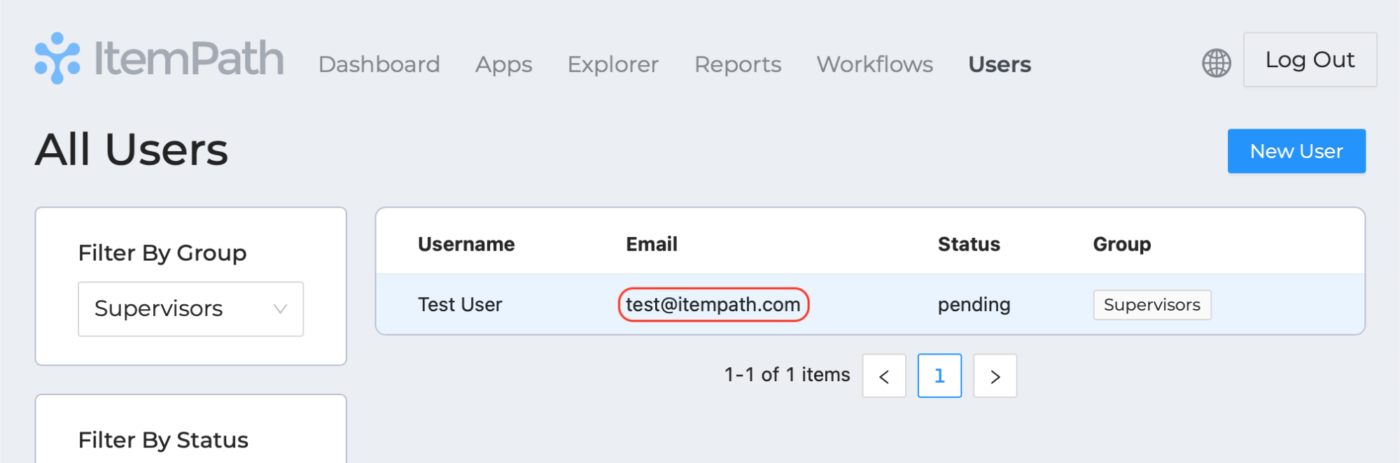
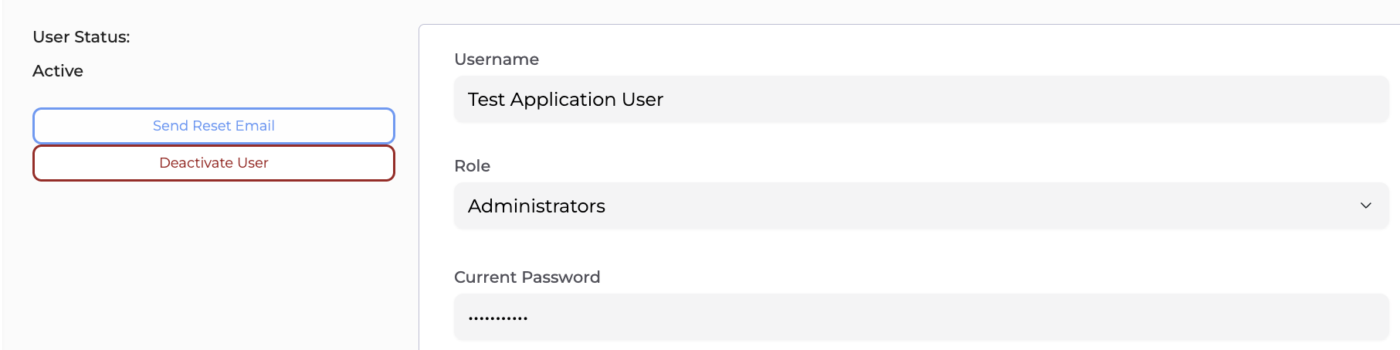
If a user needs help resetting their password, an Administrator can select their user account from the list and click Send Reset Email. This will automatically trigger a fresh reset email to be sent directly to that user.
If you are an Administrator and have forgotten your password, reach out to support@itempath.com with your recovery key. The support team will issue a password reset email.
Note: If you click on a user, you’ll see that you can manually change their password directly from the panel. However, you will need the user’s current password to do this.
