


For accounts with both Test and Production environments, testing configurations first is a great way to validate your setup. Though full automated migrations aren't supported, exporting and importing configuration templates lets you easily replicate settings across environments with minimal manual effort.
Important: Always verify that external connections (such as Power Pick and other integrated systems) point to the correct Production or Test data endpoints to ensure data accuracy.
Reports
To export a report, open it in your source environment and select Download Template. After confirming the prompt, ItemPath will generate a report template file with the following naming pattern [your report name]-template.itempath.json.
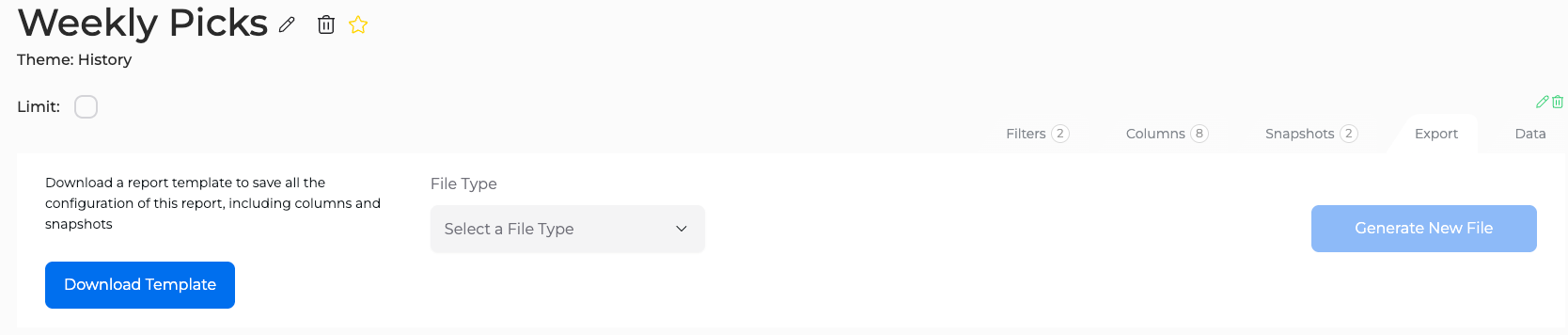
Next, switch to your target environment (Test or Production) and follow the Create or Import a Report process, selecting your downloaded template to automatically replicate the exact setup.
To import a template:
- Navigate to the Reports page in ItemPath.
Select Import Template.

Use Browse… to find and upload your .itempath.json file.

- ItemPath will create a report using settings from the template.
You can find the full Report Export Instructions here and the full Report Import Instructions here.
Data Push, Data Pull & Variance Apps
If you have the Data Push, Data Pull or Variance apps, you can duplicate integration settings across environments using the same approach. Navigate to the integration you want to copy, open the Settings tab, and select Download Template. 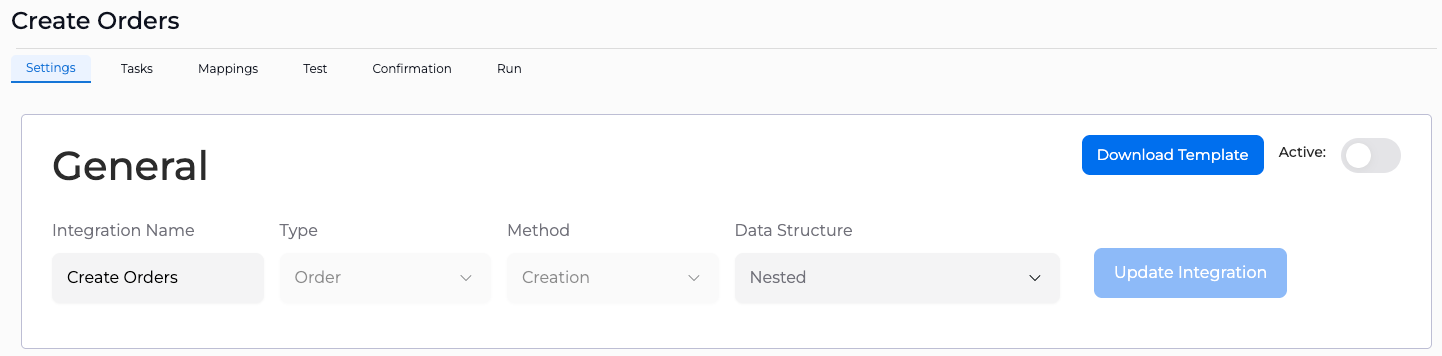
When creating a new integration in the target environment, simply click Import Template and upload your template to pre-populate all settings and mappings automatically. This will automatically populate the settings and mappings you've already configured. This button can be found in the top right corner of the Data Pull, Data Push, and Variance landing pages.

After importing your templates, verify that your connection settings point to the correct Production or Test endpoints. For step-by-step guidance, view the instructions for Data Pull Connection Settings and Data Push Connection Settings.
