


Deleting Orders with Data Pull
While Data Pull is primarily used to import new data into Power Pick, you can also configure integrations to cancel existing orders.
To create the integration and set up the initial configurations, follow the steps outlined in Integration Settings. Be sure to select "Deletion" as the Method.

Don't forget to select the appropriate structure:

There are a few key differences when it comes to deleting Orders vs. creating Orders.
Delete Orders or Order Lines?
You can delete entire Orders, or individual Order Lines.
Note: Only Orders with a Status Type of Untouched (1) or Ready for Allocation (2) can be deleted. If an Order is partially completed, it cannot be deleted.
To delete Order Lines:
- Be sure that the integration(s) used to create Orders includes a mapping for the Order Line Number.
- On the Settings tab for the deletion integration, scroll down to Other Settings and select Delete Lines Only.

Mapping
Mapping this type of integration is relatively straightforward. There are only 2 columns available to map:
- Order Name (always required)
- Order Line Number (only required when deleting individual Order Lines)
That being said, you still need to set up your mapping to match the structure of the data that Data Pull will be retrieving. For example, if the JSON being sent from your external system looks like this:
{
  "value": [
    {
      "name": "ORD-77402",
      "itemNumber": 101
    },
    {
      "name": "ORD-77403",
      "itemNumber": 102
    }
  ]
}
Your mappings would look like this:
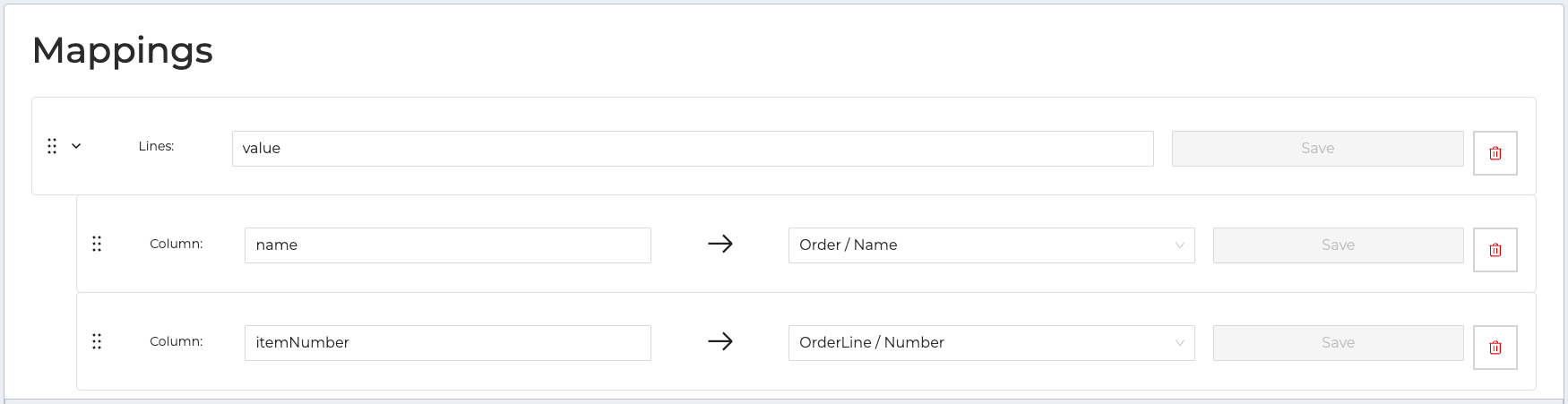
Note: In this example, the Structure is Flat and Order Lines are grouped by the Order Name.
Manual or Automatic?
This Data Pull method is primarily intended to be used manually. Activating the integration will not automatically poll for orders to delete.
- To manually delete an order: Navigate to the Run tab, paste your JSON and click Run.
- If you would rather conduct a manual run using your own client, the URL for this integration's endpoint is available beneath the text box. Send a JSON POST request to that URL with an access token in the header for authentication.
- To automatically delete orders:
- Carefully configure your path to include filters that will identify the orders you want to delete.
- In Other Settings, select "Include in Automatic Polling".
- Activate the integration.