

Process an Order
Manually Process an Order
Select a Manual Order Processor Integration, then navigate to the Orders tab and click the green arrow next to the Order you wish to process.

Before processing an Order, you need to Allocate it. Itempath will automatically communicate with Power Pick to ensure the Order is allocated to a Location that matches the Order's needs. You have the flexibility to re-alloate if order details change, or to deallocate if necessary.
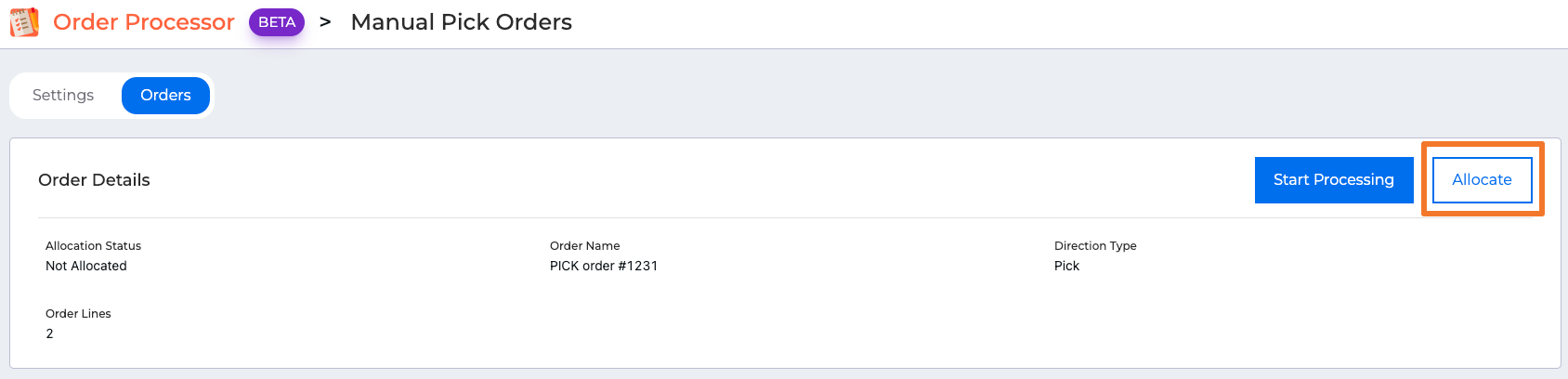
- Once an Order is Allocated, click Start Processing.
You'll be presented with the first Order Line to process. You can edit the quantity, or any additional fields that have been added, then click Confirm when you've completed the Order Line. The confirmation will be instantly sent to Power Pick, and the next Order Line will be presented.
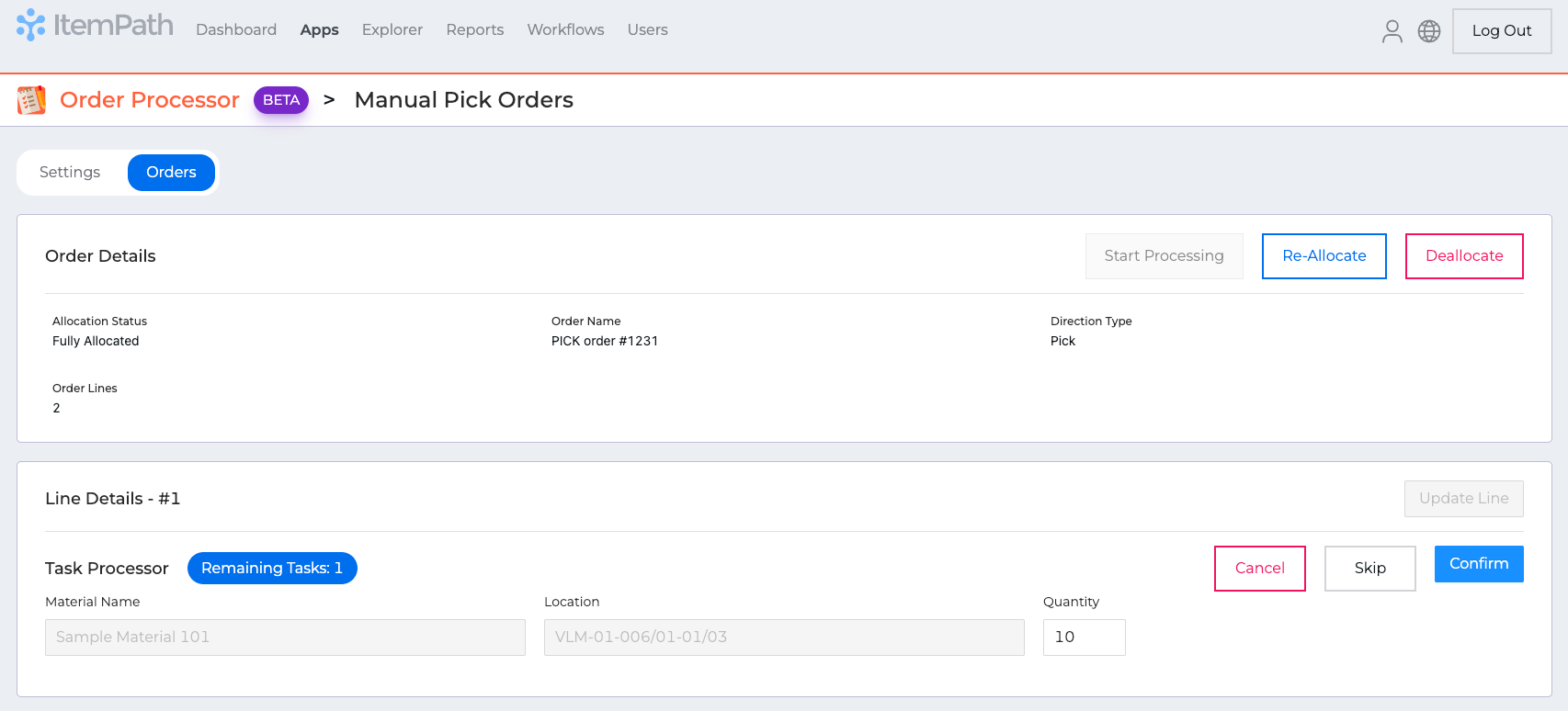
- If you need to, you can Skip an Order Line and it will be moved to the end of the queue.
Automatically Process an Order
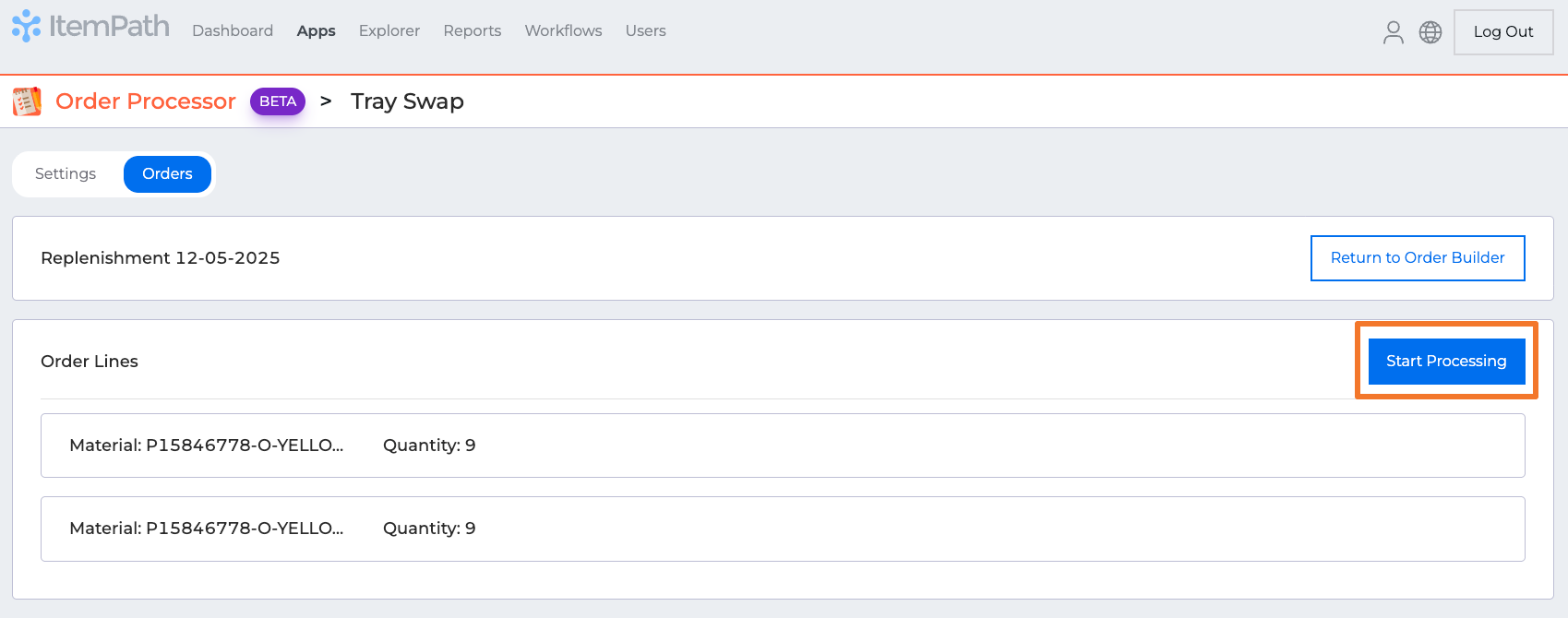
- Select an Automatic Order Processor Integration, then navigate to the Orders tab and click the green arrow next to the Order you wish to process. You'll be presented with the full list of Order Lines.
The Order is automatically allocated, so all you have to do is click Start Processing. All Order Lines will be processed at once, without any additional confirmations.