


Manual Pull (OData)
The Manual Pull (OData) feature is designed for customers integrating ItemPath with an external system via OData. While Manual Runs require raw JSON data, the Manual Pull feature allows you to pull specific records from your external system simply by entering unique identifiers like Order Numbers.
How it Works
When you use Manual Pull, ItemPath dynamically appends a $filter paramter to your integration's API endpoint. This allows you to "query" the external system for specific records, rather than importing a full dataset.
- Single Values: If you enter one ID, ItemPath adds an
eq(equal to) filter. - Multiple Values: If you enter multiple IDs, ItemPath uses an
orstatement to fetch all specified records in one request. - Existing Filters: If your integration path already includes a filter (e.g., filtering by a specific Warehouse ID), ItemPath will append your manual IDs using an
andstatement so that both conditions are met.
Configuration
To enable OData manual pulls, you must first define which field ItemPath should use to look up your records.
- Navigate to the Settings tab of your Data Pull integration. (Note: If this integration is only used for manual pulls, it can be left Inactive).
- In the Other Settings section, check the box for Enable Manual Pull (OData).
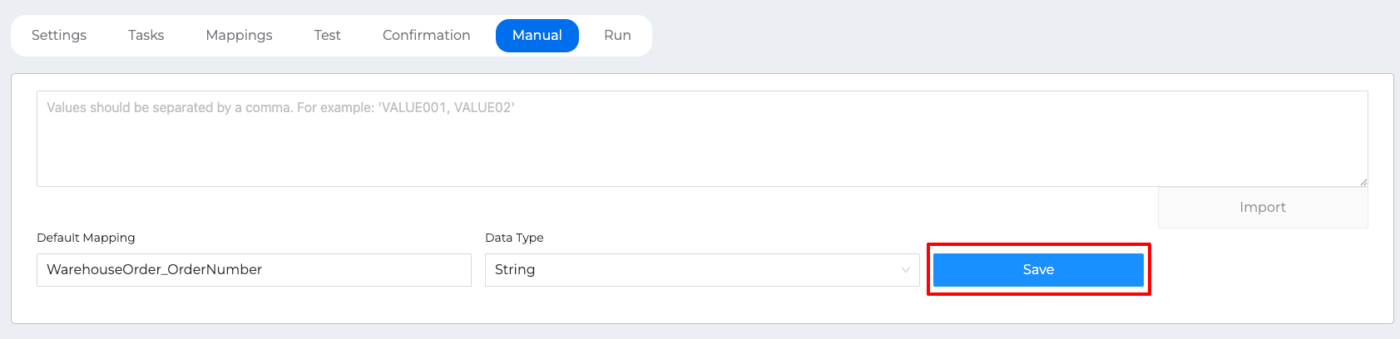
- Switch to the Manual tab.
- In the Default Mapping field, enter the property name from your external system that identifies the records (e.g.,
WarehouseOrder_OrderNumber). - In the Data Type field, select String (for alphanumeric values) or Number. This ensures the OData query uses the correct syntax (e.g., adding single quotes for strings).
- Click Save.
Running a Manual Pull
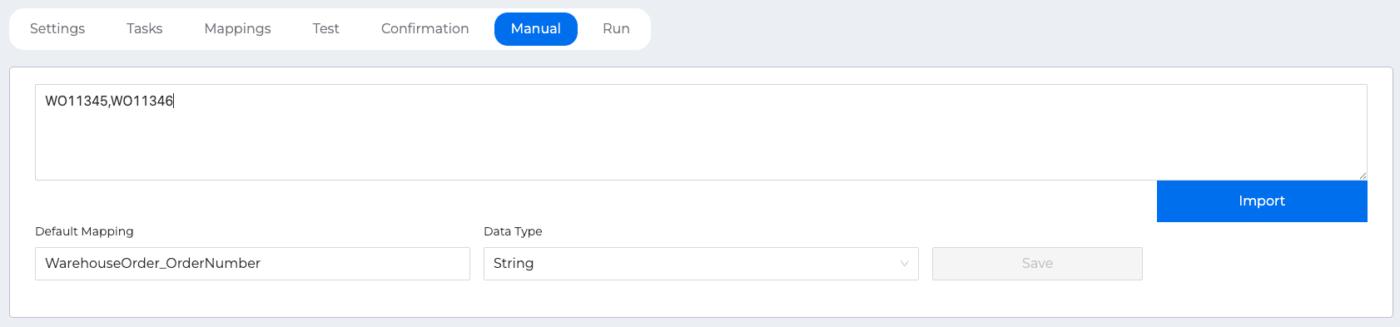
- In the large text box on the Manual tab, enter one or more values (e.g., Order Numbers).
- If entering multiple values, separate them with a comma.
- Click Import.
Examples of Generated Queries
Scenario | Input Value(s) | Resulting OData Filter (appended to your endpoint path) |
Numeric ID |
|
|
String ID |
|
|
Multiple IDs |
|
|
With Existing Path Filter |
|
|
If the import fails, verify that:
- The Default Mapping field exactly matches the property name in your external system's metadata.
- The Data Type matches the field type in the external system.
- The external system supports
$filterOData parameters.